<?xml version="1.0" encoding="utf-8"?><feed xmlns="http://www.w3.org/2005/Atom" ><generator uri="https://jekyllrb.com/" version="3.10.0">Jekyll</generator><link href="https://pybricks.com/feed.xml" rel="self" type="application/atom+xml" /><link href="https://pybricks.com/" rel="alternate" type="text/html" /><updated>2026-03-09T14:38:04+00:00</updated><id>https://pybricks.com/feed.xml</id><title type="html">Pybricks</title><subtitle>Pybricks lets you code your LEGO® creations to make them come alive. Learn to build and code your own creations, or follow along with our tutorials. Pybricks works with LEGO MINDSTORMS, SPIKE Prime, LEGO Technic, LEGO City Trains, LEGO Boost, and more.</subtitle><author><name>Laurens Valk</name></author><entry><title type="html">Saving LEGO® MINDSTORMS® …</title><link href="https://pybricks.com/project/saving-lego-mindstorms/" rel="alternate" type="text/html" title="Saving LEGO® MINDSTORMS® …" /><published>2024-11-06T00:00:00+00:00</published><updated>2024-11-06T00:00:00+00:00</updated><id>https://pybricks.com/project/saving-lego-mindstorms</id><content type="html" xml:base="https://pybricks.com/project/saving-lego-mindstorms/"><![CDATA[<p><strong>… and the planet, one programmable brick at a time.</strong></p>

<p>LEGO® MINDSTORMS® was discontinued. End of story, right? Well, not so fast.
We can fix this together—and you can <a href="#become-a-mindstorms-legend">help</a>!</p>

<figure class="align-center">
<img src="/assets/images/news/ev3bricks.jpg" alt="A pile of unused EV3 bricks" />
</figure>

<p class="notice--warning"><strong>Update:</strong> Do you want to help test a pre-release? <a href="#try-it-out-in-the-classroom">We want to hear from you!</a></p>

<h1 id="broken-apps-and-a-big-pile-of-e-waste">Broken apps and a big pile of e-waste</h1>

<p>It’s hard to find definitive numbers, but there are at least hundreds of
thousands, if not millions, of MINDSTORMS sets out there. For context, that’s
more than 10 times the height of Mount Everest if you stack them all up. It’s
a <em>lot</em>.</p>

<p>Sadly, an ever-increasing number of them are no longer being used. Regular LEGO
bricks last a long time, even across generations. But when it comes to electronic
LEGO products, we seem resigned to the fact that they work for just a
few years, like most other consumer electronics.</p>

<figure style="width: 75%" class="align-center">
  <img src="/assets/images/news/ev3-pile.jpg" alt="A pile of unused EV3 bricks" />
  <figcaption>
  A big pile of EV3 bricks from just one school, ready to be replaced.
  These bricks are getting a second chance! Unfortunately, many do not. Photo credit: Facebook Marketplace.
  </figcaption>
</figure>

<p>Any gadget that requires a computer or smartphone becomes obsolete quickly as
the original apps are abandoned or stop working on modern devices. The same
has happened with previous generations of LEGO MINDSTORMS, and is now gradually
happening with the latest two: EV3 and Robot Inventor.</p>

<p>Some die-hard fans keep old laptops around just to keep their LEGO
MINDSTORMS sets running, but this isn’t feasible for most people, and certainly
not for schools.</p>

<p>Besides technical obsolescence, MINDSTORMS EV3 is being left behind because it
no longer feels relevant for today’s curriculum. But why is that? We want to
challenge both of these narratives.</p>

<p>We admire the LEGO brand and The LEGO Group’s efforts to become more
sustainable, but we believe they can do better when it comes to bricks with
electronic components. We’re here to demonstrate that this can totally be done.</p>

<h1 id="refreshing-a-legendary-robotics-kit">Refreshing a legendary robotics kit</h1>

<p>Before you read on, consider this for a minute:</p>

<blockquote>
  <p>Which past or current LEGO set has a <em>smart hub</em>, <em>motors</em>, a <em>color sensor</em>, and a <em>distance sensor</em>?</p>
</blockquote>

<p>Yep — <em>all</em> of the LEGO robot sets from the past 20 years!</p>

<figure class="half ">
  
    
      <a href="/learn/building-a-robot/spike-prime/starterbot-spike-prime-square.jpg" title="Pybricks starterbot with SPIKE Prime">
          <img src="/learn/building-a-robot/spike-prime/starterbot-spike-prime-square.jpg" alt="Pybricks starterbot with SPIKE Prime" />
      </a>


      <a href="/learn/building-a-robot/mindstorms-inventor/starterbot-mindstorms-inventor-square.jpg" title="Pybricks starterbot with MINDSTORMS Robot Inventor">
          <img src="/learn/building-a-robot/mindstorms-inventor/starterbot-mindstorms-inventor-square.jpg" alt="Pybricks starterbot with MINDSTORMS Robot Inventor" />
      </a>


      <a href="/learn/building-a-robot/mindstorms-ev3/starterbot-mindstorms-ev3-square.jpg" title="Pybricks starterbot with MINDSTORMS Robot EV3">
          <img src="/learn/building-a-robot/mindstorms-ev3/starterbot-mindstorms-ev3-square-flipped-just-because.jpg" alt="Pybricks starterbot with MINDSTORMS Robot EV3" />
      </a>


      <a href="/learn/building-a-robot/mindstorms-nxt/starterbot-mindstorms-nxt-square.jpg" title="Pybricks starterbot with MINDSTORMS Robot NXT">
          <img src="/learn/building-a-robot/mindstorms-nxt/starterbot-mindstorms-nxt-square.jpg" alt="Pybricks starterbot with MINDSTORMS Robot NXT" />
      </a>


    <figcaption>These
typical introductory rovers are built with SPIKE Prime, MINDSTORMS Robot
Inventor, MINDSTORMS EV3, and MINDSTORMS NXT. Spanning
almost 20 years, is there anything fundamentally different? With
a fresh take on software, these all work great with modern curriculum.
</figcaption>
  
</figure>

<p>This includes MINDSTORMS NXT, MINDSTORMS EV3, MINDSTORMS Robot Inventor, SPIKE
Prime, and SPIKE Essential. With some creativity, this definition even includes
LEGO BOOST, LEGO Powered Up and Technic, and WeDo 1.0 and 2.0.</p>

<p>What sets them apart is not the technology, but the out-of-the-box play
and learning experience. Each set had its own unique and exciting play
experience designed for the relevant audience at that time.</p>

<p>While each of these were brilliant in their own right, some of them now feel
outdated or don’t work anymore. But since the technology hasn’t fundamentally
changed for 20 years, this presents us with a unique opportunity: invent a
modern and future-proof play experience for <em>all</em> LEGO robotics sets.</p>

<p>This is what we have been doing successfully with Pybricks for the past 5
years, and now it is time to bring EV3 into the fold!</p>

<h1 id="what-is-pybricks-for-ev3">What is Pybricks for EV3?</h1>

<p>Pybricks for LEGO MINDSTORMS EV3 will be a complete refresh of the EV3 play
experience, all without purchasing new stuff.</p>

<p>It will work with modern computers and curriculum, right alongside
SPIKE and other newer platforms. The EV3 starts and stops instantly, and you
can code it with MicroPython or blocks.</p>

<figure class="" style="margin: 0px 0px 20px 0px;">
    <a href="/learn/intro/codepreview.png">
        <img src="/learn/intro/codepreview.png" alt="Everything you love about Pybricks, soon also for EV3." />
    </a>
    
    <figcaption>
    Everything you love about Pybricks, soon also for EV3.
    </figcaption>
    
</figure>

<p>Put another way, the EV3 used to be like an older Raspberry Pi. We make
it work more like Micro:Bit, which is much more beginner-friendly and
classroom-ready.</p>

<p>With this upgrade, your EV3 comes back to life with many years to go, at home
and in the classroom. Not just for teaching or play, but also for competing in
FIRST LEGO League (FLL) and the World Robotics Olympiad (WRO).</p>

<h2 id="what-can-it-do">What can it do?</h2>

<p>Everything you love about Pybricks for MINDSTORMS Inventor and SPIKE Prime will
also come to LEGO MINDSTORMS EV3, as far as the hardware allows. This means
an easy setup, effective sensor and motor control, and accurate driving.</p>

<p>You will write programs for the EV3 brick using the <a href="https://docs.pybricks.com/en/latest">same Pybricks MicroPython
commands</a> and blocks that exist for all of
the currently supported hubs.</p>

<p>The first release will focus on the essential features, like support for all
the official EV3 motors and sensors. Note that it will not do <em>everything</em> that
the EV3 could possibly do from day one. But since the new firmware is open
source too, we expect to add exciting new features over time.</p>

<p>Oh — remember that the EV3 felt sluggish and slow to boot? Especially
compared to the new hubs? We’ve solved that:</p>

<video width="100%" controls="">
  <source src="/assets/images/news/boot-ev3.mp4" type="video/mp4" />
</video>
<figcaption>
Boot time for the original EV3 (left) and after installing Pybricks (right). It's... different.
</figcaption>

<h2 id="did-pybricks-not-already-support-ev3">Did Pybricks not already support EV3?</h2>

<p>Kind of. The earliest iterations of Pybricks (1.0 and 2.0) ran on ev3dev Linux.
It is still (and will remain) available on the <a href="https://education.lego.com/en-us/product-resources/mindstorms-ev3/teacher-resources/python-for-ev3/">LEGO Education website</a>. You
needed a particular type of microSD card, a now-outdated flashing tool, and
Visual Studio Code. It also took a long time to boot. This was great for hackers
and early adopters, but it just isn’t suitable for beginner-level classrooms.</p>

<p>Pybricks 3.0 has made huge leaps since then. Updating the hub and writing code
(blocks and Python) works in your browser without additional installs. You can
basically just code, and your smart hub boots instantly. The user commands
(“the API”) are still unchanged though. We like to keep things running!</p>

<p>Schools, FLL teams, WRO teams, and home users are already successfully
using Pybricks to build, play, invent, and win with a wide variety of modern
robotics sets. We think that the EV3 deserves to be part of the same experience.
Just plug and play!</p>

<h2 id="is-ev3-still-relevant-wheres-the-ai">Is EV3 still relevant? Where’s the AI?</h2>

<p>Sure, AI might be amazing—and yes, you <em>could</em> combine it with Pybricks if
you really wanted to—but it is not our focus.</p>

<p>No matter how you’ll code, a motor is still going to have to rotate,
lights still need to blink, and a robot still needs to drive straight.</p>

<p>Our focus is on getting these fundamentals absolutely right across a wide range
of robotics systems. This ensure that Pybricks is future-proof even as the
latest trends in STEM education constantly evolve.</p>

<p>In fact, since more advanced processing like artificial intelligence tends to
happen on devices like your phone or the cloud anyway, these fancy additions
work equally well with newer sets like SPIKE as they do with older sets like
EV3, since we’ve made the underlying robotics framework the same throughout.</p>

<h2 id="will-it-be-free-and-open-source">Will it be free and open source?</h2>

<p>Just like Pybricks for the other LEGO hubs, the firmware and Python coding
environment are free and open source. We are working on this around the
clock.</p>

<p>We’ll also have <em>optional</em> add-on features like block-based coding, which help
us fund our mission. Naturally, prior supporters will automatically get
access when we enable this for EV3! Thanks again for
your <a href="#become-a-mindstorms-legend">support</a>.</p>

<h2 id="where-are-we-now">Where are we now?</h2>

<p>Developments will be gradually published on
<a href="https://github.com/pybricks/pybricks-micropython">GitHub</a> in the months to
come. We are currently working on implementations for:</p>

<ul>
  <li>Booting the EV3 instantly.</li>
  <li>Installing the firmware. No SD card needed.</li>
  <li>Running MicroPython programs directly on the brick.</li>
  <li>Large and Medium Motors, and Drive Bases.</li>
  <li>EV3 Touch Sensor, EV3 Gyro Sensor, EV3 Color Sensor, EV3 Ultrasonic Sensor,
EV3 Infrared Sensor.</li>
</ul>

<p>The major remaining steps towards a first release include:</p>

<ul>
  <li>Implementing USB or Bluetooth connectivity.</li>
  <li>Re-implementing firmware installation in the browser.</li>
  <li>Re-implementing code download in the browser.</li>
  <li>Integrating documentation for all hubs in one release.</li>
</ul>

<p>By popular request, we’ll also list the features that could work <em>technically</em>.
These <em>could</em> be added in future releases if enough users are interested:</p>
<ul>
  <li>Legacy motor and sensor support.</li>
  <li>File management and sound support.</li>
  <li>Third-party sensor support.</li>
  <li>USB host connectivity to connect multiple bricks.</li>
</ul>

<h2 id="what-about-mindstorms-nxt">What about MINDSTORMS NXT?</h2>

<p>Great question. While we can’t make any promises yet, we have confirmed that
the NXT brick is powerful enough to run Pybricks, which is a super exciting
first step. If there is sufficient interest in this initiative for EV3, then
MINDSTORMS NXT will be next!</p>

<h1 id="become-a-mindstorms-legend">Become a MINDSTORMS legend!</h1>

<p>Would you like to help make this happen? We’d love your support!</p>

<p>When shutting down, the EV3 will scroll
through the credits, highlighting everyone who helped make this project
possible.</p>

<p>To get your name or alias featured on everyone’s EV3 with Pybricks, please join
the <a href="https://www.patreon.com/pybricks/membership">MINDSTORMS legend tier on Patreon</a>.</p>

<p>We are incredibly grateful for your support. It would not be possible without
you!</p>

<figure style="width: 75%" class="align-center">
  <img src="/assets/images/news/ev3-credits.jpg" alt="Your name on the closing credits." />
  <figcaption>
  You can get listed as a supporter in the credits during shutdown.
  </figcaption>
</figure>

<p>We also welcome anyone who has previously supported Pybricks. We respect your
privacy, so we’ll only add prior supporters if you ask. Send us a note if
you’d like to see your name added!</p>

<p>This work is partially funded by
a <a href="https://hackerinitiative.org/">2024 grant from the Hacker Initiative</a>.
We are immensely grateful for their help to kickstart this project.</p>

<h1 id="project-status">Project status</h1>

<p>Since we announced it late last year, we’ve been working on this project
non-stop. We’ve hit many of the major milestones, even including some of the
fan-requested features.</p>

<p>We would like to thank all <a href="https://www.patreon.com/pybricks/membership">MINDSTORMS Legends</a> and code contributors who
help make this possible!</p>

<p>As of <em>December 2025</em>, we’ve enabled the following functionality:</p>

<p><strong>EV3 Firmware</strong></p>
<ul>
  <li>Instant power on.</li>
  <li>Instant power off.</li>
  <li>No microSD card needed.</li>
  <li>Lightweight MicroPython firmware instead of Linux.</li>
  <li>Replacement firmware for the built-in PRU co-processor.</li>
  <li>Program storage.</li>
  <li>Download and run programs with Pybricksdev.</li>
</ul>

<p><strong>EV3 Brick</strong></p>
<ul>
  <li>Buttons</li>
  <li>Light with adjustable intensity</li>
  <li>Display (text, shapes, grayscale)</li>
  <li>Speaker (beep, tones)</li>
</ul>

<p><strong>EV3 Motors and Sensors</strong></p>
<ul>
  <li>EV3 Large Motor</li>
  <li>EV3 Medium Motor</li>
  <li>EV3 Color Sensor</li>
  <li>EV3 Infrared Sensor</li>
  <li>EV3 Touch Sensor</li>
  <li>EV3 Ultrasonic Sensor</li>
  <li>EV3 Gyro Sensor including calibration</li>
  <li>Motor and Drive Base classes</li>
</ul>

<p><strong>NXT Motors and Sensors (for EV3)</strong></p>
<ul>
  <li>NXT Large Motor</li>
  <li>RXC-style DC motor</li>
  <li>NXT Ultrasonic Sensor</li>
  <li>NXT Touch Sensor</li>
  <li>NXT Color Sensor</li>
  <li>NXT Light Sensor</li>
  <li>NXT Sound Sensor</li>
  <li>NXT Temperature Sensor</li>
  <li>NXT Energy Meter</li>
  <li>NXT Vernier Adapter</li>
</ul>

<p><strong>Custom devices</strong></p>
<ul>
  <li>Direct UART access</li>
  <li>Direct I2C access</li>
  <li>Direct analog access</li>
</ul>

<h1 id="try-it-out-in-the-classroom">Try it out in the classroom</h1>

<p>If you want to try out an early version of Pybricks for EV3 at home or in your
classroom, we’d love to <a href="/learn/intro/story-mission/#who-are-we">hear from you</a>.</p>]]></content><author><name>Laurens Valk</name></author><category term="News" /><category term="Python" /><category term="SPIKE Prime" /><category term="MINDSTORMS EV3" /><category term="MINDSTORMS Robot Inventor" /><summary type="html"><![CDATA[Pybricks reboots LEGO® MINDSTORMS® for use in the modern classroom. Help us save hundreds of thousands of robots from the e-waste pile!]]></summary></entry><entry><title type="html">Using Pybricks on Linux</title><link href="https://pybricks.com/project/pybricks-on-linux/" rel="alternate" type="text/html" title="Using Pybricks on Linux" /><published>2024-07-01T00:00:00+00:00</published><updated>2024-07-01T00:00:00+00:00</updated><id>https://pybricks.com/project/pybricks-on-linux</id><content type="html" xml:base="https://pybricks.com/project/pybricks-on-linux/"><![CDATA[<p><img src="/assets/images/pybricks-code-linux.png" alt="Pybricks on Linux" /></p>

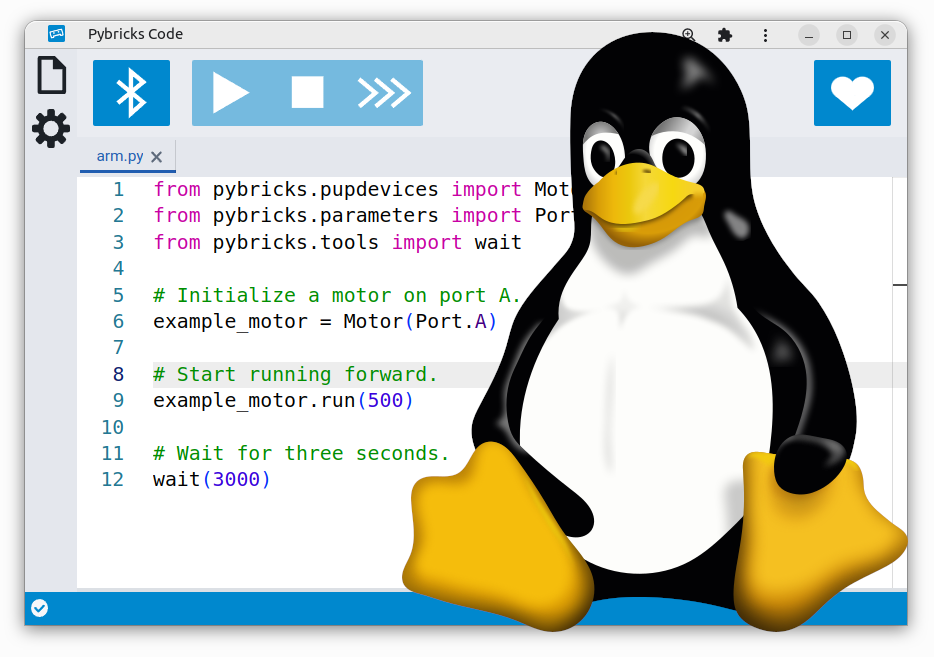
<p>You can <a href="/learn/getting-started/pybricks-environment/">create programs</a> on
Windows 10 or 11, macOS, Linux, Android, or ChromeOS. This page covers the
additional configuration you’ll need to use Pybricks effectively on Linux.</p>

<p>The Pybricks developers use Linux daily, so we definitely wanted to make sure
this works well!</p>

<h1 id="choosing-an-editor-or-browser">Choosing an editor or browser</h1>

<p>The simplest way to get started is to use the web-based Pybricks Code editor at
<a href="https://code.pybricks.com/" target="_blank">code.pybricks.com</a>. You
can also use <a href="/project/pybricks-other-editors/">your preferred local editor</a>.</p>

<p>If you use the web-based interface, we recommend using Chromium. You can
install it using your preferred package manager. On Ubuntu for example, you
can do:</p>

<div class="language-plaintext highlighter-rouge"><div class="highlight"><pre class="highlight"><code>sudo snap install chromium
</code></pre></div></div>

<p>Google Chrome works as well. Other Chromium-based web-browser may or may not
support Web Bluetooth. Notably, Opera, Vivaldi and Brave do not support Web
Bluetooth.</p>

<p>Web Bluetooth is not officially supported on Linux and requires Experimental
Web Platform features to be enabled. Copy and paste the following in the
address bar, set it to <em>Enabled</em> and restart the browser.</p>

<div class="language-plaintext highlighter-rouge"><div class="highlight"><pre class="highlight"><code>chrome://flags/#enable-experimental-web-platform-features
</code></pre></div></div>

<p>If you use Chromium as a snap package, you may get an error when you try to
install the firmware on a SPIKE Prime, SPIKE Essential, or MINDSTORMS Robot
Inventor hub via USB. To resolve this, enable access to USB devices:</p>

<div class="language-plaintext highlighter-rouge"><div class="highlight"><pre class="highlight"><code>sudo snap connect chromium:raw-usb
</code></pre></div></div>

<h1 id="adding-udev-rules-on-linux">Adding udev rules on Linux</h1>

<p>This step is only needed for LEGO hubs with USB, such as SPIKE Prime, SPIKE
Essential, and MINDSTORMS Robot Inventor.</p>

<p>By default, Linux does not allow the use of unknown USB devices, so you need to
add <code class="language-plaintext highlighter-rouge">udev</code> rules for your hubs. Pybricks provides a couple of ways to do this.</p>

<p>If you are using an Ubuntu-based Linux distro, you can install the
<code class="language-plaintext highlighter-rouge">pbrick-rules</code> package from the Pybricks PPA. This method has the advantage of
automatic updates.</p>

<div class="code-header">
    <button class="btn btn--primary copy-code-button" aria-label="Copy code to clipboard">Copy code</button>
</div>

<div class="language-plaintext highlighter-rouge"><div class="highlight"><pre class="highlight"><code>sudo add-apt-repository --update ppa:pybricks/ppa
sudo apt install pbrick-rules
</code></pre></div></div>

<p>You can alternately install the rules using the <code class="language-plaintext highlighter-rouge">pybricksdev</code> command line tool:</p>

<div class="code-header">
    <button class="btn btn--primary copy-code-button" aria-label="Copy code to clipboard">Copy code</button>
</div>

<div class="language-plaintext highlighter-rouge"><div class="highlight"><pre class="highlight"><code>pipx run pybricksdev udev | sudo tee /etc/udev/rules.d/99-pybricksdev.rules
</code></pre></div></div>

<p>If neither of these options is suitable, you can manually copy <a href="https://github.com/pybricks/pybricksdev/blob/master/pybricksdev/resources/99-pybricksdev.rules">this
file</a>
to <code class="language-plaintext highlighter-rouge">/etc/udev/rules.d/99-pybricksdev.rules</code>.</p>

<p>After installing the <code class="language-plaintext highlighter-rouge">udev</code> rules, disconnect any affected devices and plug them back in. 
If this doesn’t seem to work, try rebooting.</p>]]></content><author><name>Laurens Valk</name></author><category term="Python" /><category term="Block Coding" /><category term="Technic" /><category term="City" /><category term="Boost" /><category term="SPIKE Prime" /><category term="MINDSTORMS Robot Inventor" /><category term="SPIKE Essential" /><summary type="html"><![CDATA[Tips and tricks for using Pybricks successfully on Linux. With udev rules and snap configurations for Chromium.]]></summary></entry><entry><title type="html">Using Pybricks with Visual Studio Code and other editors</title><link href="https://pybricks.com/project/pybricks-other-editors/" rel="alternate" type="text/html" title="Using Pybricks with Visual Studio Code and other editors" /><published>2024-07-01T00:00:00+00:00</published><updated>2024-07-01T00:00:00+00:00</updated><id>https://pybricks.com/project/pybricks-other-editors</id><content type="html" xml:base="https://pybricks.com/project/pybricks-other-editors/"><![CDATA[<p><img src="/assets/images/pybricks-vscode.png" alt="Pybricks on Linux" /></p>

<p>You can <a href="/learn/getting-started/pybricks-environment/">create programs</a> on
Windows 10 or 11, macOS, <a href="/project/pybricks-on-linux/">Linux</a>, Android, or
ChromeOS. The simplest way to get started is to use the web-based Pybricks Code
editor at <a href="https://code.pybricks.com/" target="_blank">code.pybricks.com</a>.</p>

<p>You can also use your preferred local editor. On this page, we’ll show you how.</p>

<p class="notice">This guide is for <a href="/learn/getting-started/what-do-you-need/">Powered Up hubs</a>.
If you are using Pybricks on LEGO® MINDSTORMS® EV3, we recommend using the
official <a href="https://marketplace.visualstudio.com/items?itemName=lego-education.ev3-micropython">LEGO® MINDSTORMS® EV3 MicroPython</a> extension for Visual Studio Code.
Everything you need to know from how to install the extension to how to create
a new project is detailed in the <a href="https://pybricks.com/ev3-micropython">official docs</a>.</p>

<h1 id="running-pybricks-scripts-from-the-command-line">Running Pybricks scripts from the command line</h1>

<p>Instead of a full-fledged extension for a specific editor, we’ve created a
generic command line utility called <code class="language-plaintext highlighter-rouge">pybricksdev</code> that you can use to run
programs on the LEGO hubs. In turn, you can integrate this tool with your
favorite editor.</p>

<p class="notice">If you plan to use Visual Studio Code or a similar editor, skip this manual
approach. We’ll do it as part of a bigger installation later in this article.</p>

<p>Since <a href="https://pypi.org/project/pybricksdev/" target="_blank"><code class="language-plaintext highlighter-rouge">pybricksdev</code></a> is just a Python package, you can install it with
your favorite Python package manager. If you have 
<a href="https://pipx.pypa.io/stable/" target="_blank"><code class="language-plaintext highlighter-rouge">pipx</code></a>
for example, you can do:</p>

<div class="language-plaintext highlighter-rouge"><div class="highlight"><pre class="highlight"><code>pipx install pybricksdev
</code></pre></div></div>

<p>Once installed, you can run programs from the command line as follows. Replace
<code class="language-plaintext highlighter-rouge">my_program</code> with the actual name of the program you want to run.</p>

<div class="language-plaintext highlighter-rouge"><div class="highlight"><pre class="highlight"><code>pybricksdev run ble my_program.py
</code></pre></div></div>

<p>If you have more than one active hub, you can specify a specific hub by name:</p>

<div class="language-plaintext highlighter-rouge"><div class="highlight"><pre class="highlight"><code>pybricksdev run ble --name "my hub" my_program.py
</code></pre></div></div>

<p>Pybricksdev will try to connect to the hub, download the program, and start it.
It disconnects when the code completes. This approach has some minor
inconveniences that you should be aware of:</p>
<ul>
  <li>Since it doesn’t stay connected, the hub will turn off after being idle for a
few minutes. Just turn it on again with the button.</li>
  <li>You cannot stop the program from within Visual Studio Code, so you’ll have to
use the hub button to stop it.</li>
</ul>

<h1 id="using-pybricks-with-visual-studio-code">Using Pybricks with Visual Studio Code</h1>

<p>The <code class="language-plaintext highlighter-rouge">pybricksdev</code> command line tool does not <em>require</em> that you use any
particular editor, but you can set up an editor to make running code more
<em>convenient</em>. We’ll show you how to do it for <a href="https://code.visualstudio.com">Visual Studio Code</a>, but the steps
may be similar for other editors.</p>

<p>First, make sure Python is installed. You can install Python from the <a href="https://www.python.org/downloads">official
site</a>, or using your favorite package manager. On Linux, Python is most
likely already installed, but you will also need the <code class="language-plaintext highlighter-rouge">venv</code> package:</p>

<div class="language-plaintext highlighter-rouge"><div class="highlight"><pre class="highlight"><code>sudo apt install python3-venv
</code></pre></div></div>

<p>Now install the <a href="https://marketplace.visualstudio.com/items?itemName=ms-python.vscode-pylance">Pylance</a> extension. Search for <code class="language-plaintext highlighter-rouge">Pylance</code> on the <em>Extensions</em>
tab in Visual Studio Code and click <em>Install</em> to install.</p>

<h2 id="setting-up-a-virtual-environment">Setting up a virtual environment</h2>

<p>Once <em>Python</em> and <em>Pylance</em> are installed, you can use Visual Studio Code to
set up an isolated <em>virtual environment</em>.</p>

<ul>
  <li>Create a new project by simply creating a new, empty folder on your computer
and opening that folder in Visual Studio Code.</li>
  <li>Use <kbd>F1</kbd> or (<kbd>⌘</kbd>+<kbd>⇧</kbd>+<kbd>P</kbd> on macOS) to
open the command palette in Visual Studio Code.</li>
  <li>Type in <code class="language-plaintext highlighter-rouge">py create env</code> to search for <em>Python: Create Environment</em> and select
that option.</li>
  <li>It will ask you to “Select and environment type”. Choose <em>Venv</em>.</li>
  <li>It will ask you to “Select Interpreter”. Choose the one that says <code class="language-plaintext highlighter-rouge">*Global*</code>.</li>
  <li>There will now be a new subfolder in your project named <code class="language-plaintext highlighter-rouge">.venv</code> that contains
the virtual environment and Visual Studio Code should set it as the
interpreter to use for your project.</li>
  <li>To use the virtual environment, open the command pallette again and search
for <code class="language-plaintext highlighter-rouge">py create term</code> and select <em>Python: Create Terminal</em>.</li>
  <li>This should open a new terminal and present a prompt that starts with <code class="language-plaintext highlighter-rouge">(.venv)</code>,
if all went well.</li>
</ul>

<p>Instead of following the steps above, you can also do it on the command line
using:</p>

<div class="language-plaintext highlighter-rouge"><div class="highlight"><pre class="highlight"><code># macOS/Linux
python3 -m venv .venv
. .venv/bin/activate
</code></pre></div></div>

<p>On Windows, that would be:</p>

<div class="language-plaintext highlighter-rouge"><div class="highlight"><pre class="highlight"><code># Windows PowerShell
py -3 -m venv .venv
.venv/scripts/activate
</code></pre></div></div>

<h2 id="installing-the-pybricks-package">Installing the pybricks package</h2>

<p>Once you have a <code class="language-plaintext highlighter-rouge">(.venv)</code> prompt as described in the previous section, you can
install the <code class="language-plaintext highlighter-rouge">pybricks</code> package by typing the following in the terminal with the
<code class="language-plaintext highlighter-rouge">(.venv)</code> prompt:</p>

<div class="language-plaintext highlighter-rouge"><div class="highlight"><pre class="highlight"><code>pip install pybricks
</code></pre></div></div>

<p>Then you need to restart the Python language server to pick up the new package.
In the command pallette, search for “py restart” and select <em>Python: Restart
Language Server</em>.</p>

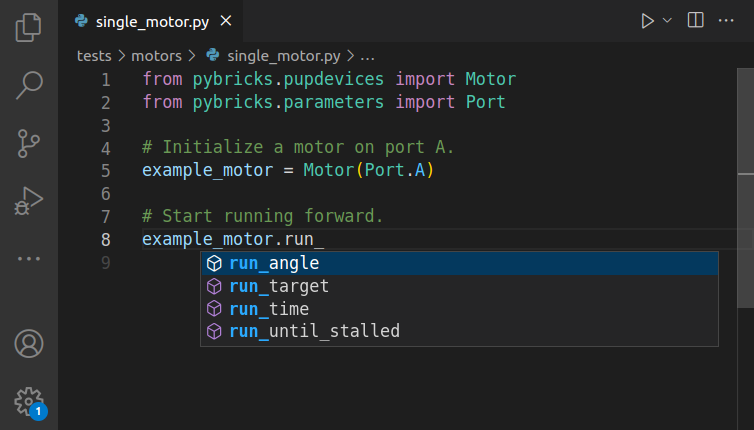
<p>Now code completion and intellisense should be working. You can try it by
opening an existing file and hovering over text to see the relative
documentation or you can create a new <code class="language-plaintext highlighter-rouge">.py</code> file and start typing <code class="language-plaintext highlighter-rouge">from
pybricks.</code> and see suggestions on what comes next.</p>

<h2 id="downloading-and-running-programs">Downloading and running programs</h2>

<p>Install the <code class="language-plaintext highlighter-rouge">pybricksdev</code> package in the virtual environment:</p>

<div class="language-plaintext highlighter-rouge"><div class="highlight"><pre class="highlight"><code>pip install pybricksdev
</code></pre></div></div>

<p>You can test that it works using the commands <a href="#installing-the-command-line-run-tool">described earlier</a>.
It works the same, but now it runs from within your virtual environment.</p>

<p>To get your program started with <em>F5</em> or <em>CTRL+F5</em>, create a run configuration.
Create a folder called <code class="language-plaintext highlighter-rouge">.vscode</code> and add a file called <code class="language-plaintext highlighter-rouge">launch.json</code> with the
following contents:</p>

<div class="code-header">
    <button class="btn btn--primary copy-code-button" aria-label="Copy code to clipboard">Copy code</button>
</div>

<div class="language-plaintext highlighter-rouge"><div class="highlight"><pre class="highlight"><code>{
    "version": "0.2.0",
    "configurations": [
        {
            "name": "Python Debugger: Module",
            "type": "debugpy",
            "request": "launch",
            "module": "pybricksdev",
            "args": ["run", "ble", "${file}"],
        }
    ]
}
</code></pre></div></div>

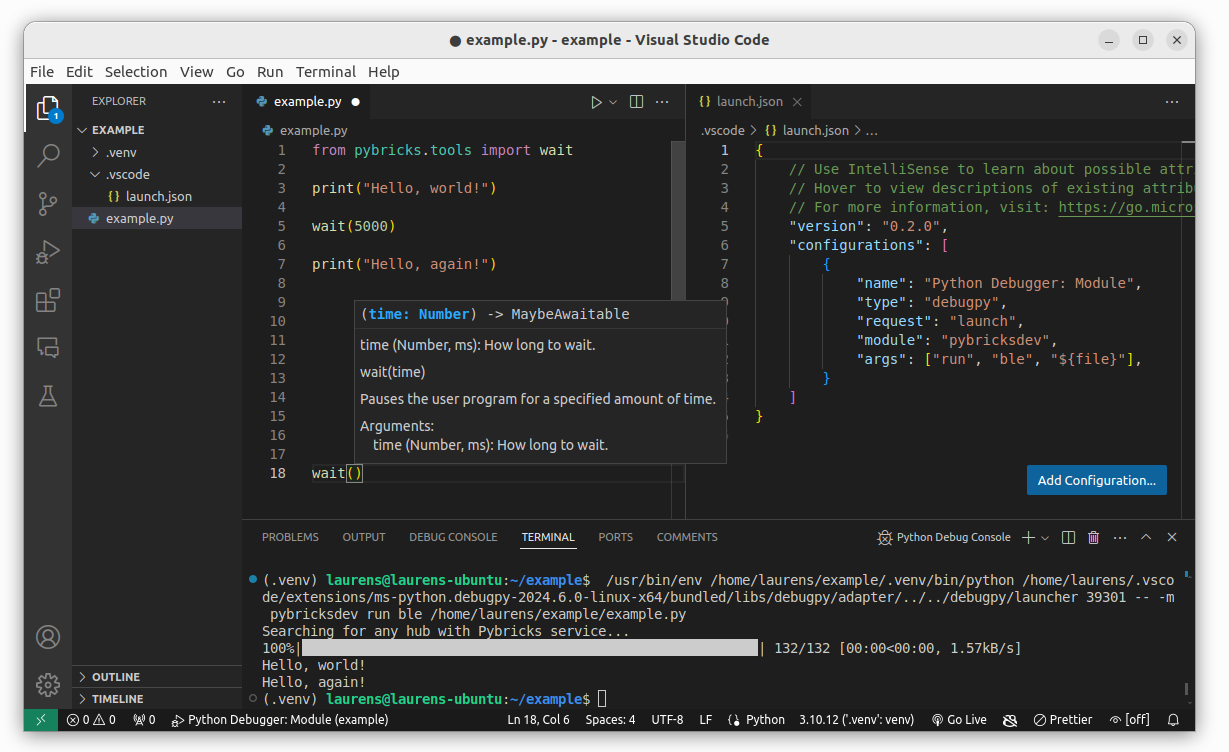
<p>You can now run an opened Python program with <code class="language-plaintext highlighter-rouge">F5</code>. The full setup, including
an example with code highlighting of Pybricks commands is shown below.</p>

<figure class="" style="margin: 0px 0px 20px 0px;">
    <a href="/assets/images/pybricks-vscode-details.png">
        <img src="/assets/images/pybricks-vscode-details.png" alt="Running Pybricks programs with Visual Studio Code via pybricksdev." />
    </a>
    
    <figcaption>
    Running Pybricks programs with Visual Studio Code via pybricksdev.
    </figcaption>
    
</figure>

<h2 id="common-mistakes">Common mistakes</h2>

<p>Clicking any of the “run” buttons in Visual Studio Code will try to run the
program on your computer instead of downloading and running it on the hub. When
you do this, it may appear as nothing happened or if you didn’t install the
<code class="language-plaintext highlighter-rouge">pybricks</code> package, you might get an error that the <code class="language-plaintext highlighter-rouge">pybricks</code> package could
not be found. Be sure that you follow the steps above to download and run a
program with <code class="language-plaintext highlighter-rouge">F5</code> or the green play button on the debug tab.</p>]]></content><author><name>Laurens Valk</name></author><category term="Python" /><category term="Technic" /><category term="City" /><category term="Boost" /><category term="SPIKE Prime" /><category term="MINDSTORMS Robot Inventor" /><category term="SPIKE Essential" /><summary type="html"><![CDATA[You can use Pybricks in your favorite code editor like Visual Studio Code. Here's how.]]></summary></entry><entry><title type="html">Playing Tic Tac Toe with SPIKE Essential</title><link href="https://pybricks.com/project/spike-essential-tic-tac-toe/" rel="alternate" type="text/html" title="Playing Tic Tac Toe with SPIKE Essential" /><published>2024-06-11T00:00:00+00:00</published><updated>2024-06-11T00:00:00+00:00</updated><id>https://pybricks.com/project/spike-essential-tic-tac-toe</id><content type="html" xml:base="https://pybricks.com/project/spike-essential-tic-tac-toe/"><![CDATA[<p>A good way to practice more interesting coding concepts is to mimic a well
known board game. There’s no stress to get a robot mission right, and it’s
easy to check if your code behaves according to the rules of the game.</p>

<figure class="" style="margin: 0px 0px 20px 0px;">
    <a href="/project/spike-essential/spike-tic-tac-toe.jpg">
        <img src="/project/spike-essential/spike-tic-tac-toe_small.jpg" />
    </a>
    
</figure>

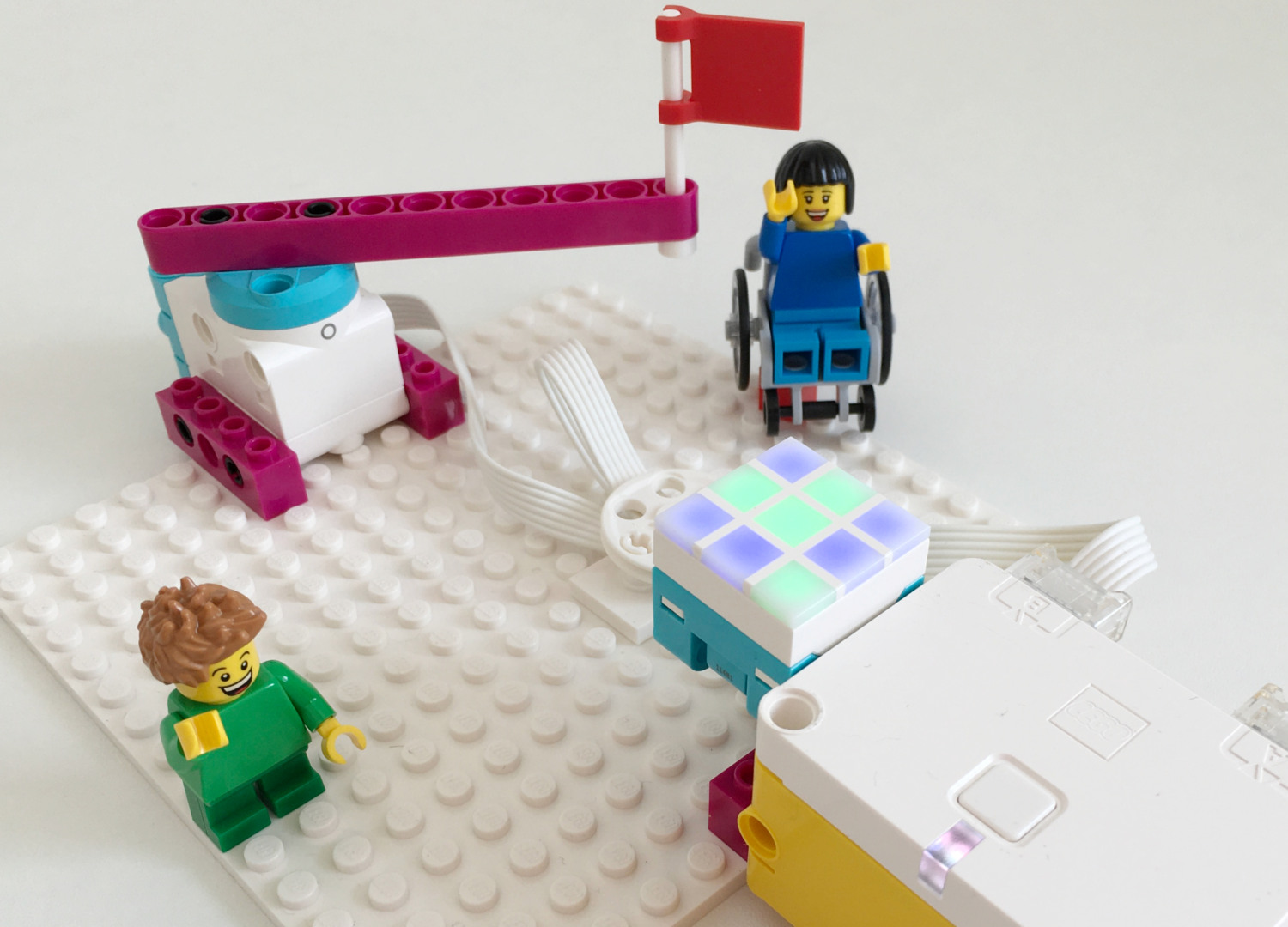
<p>In this article, we’ll show you how you can make Tic Tac Toe game for two
players!</p>

<p>
    <lite-youtube videoid="lTucJIUhj3k"></lite-youtube>
</p>

<h1 id="requirements">Requirements</h1>

<p>If you want to build exactly the same Tic Tac Toe game, you’ll need the
<a href="https://brickset.com/sets/45345" target="_blank">LEGO Education Spike Essential (45345)</a>
 set.</p>

<p>However, you can build it with any hub if you combine it with the Color Light
Matrix to display the game.</p>

<p>To build, place the motor and the hub on the base plate using some bricks and
pins, as shown above. Add a beam to the motor to indicate whose turn it is.</p>

<h2 id="running-and-playing-the-game">Running and playing the game</h2>

<p>Instead of noughts and crosses, you’ll use the blue and green colors
to indicate each player’s turn on the SPIKE Color Light Matrix.</p>

<p>You’ll use the hub button to choose your position, and then confirm your choice
by handing the flag to the other player for their turn. You can see this in the
video above.</p>

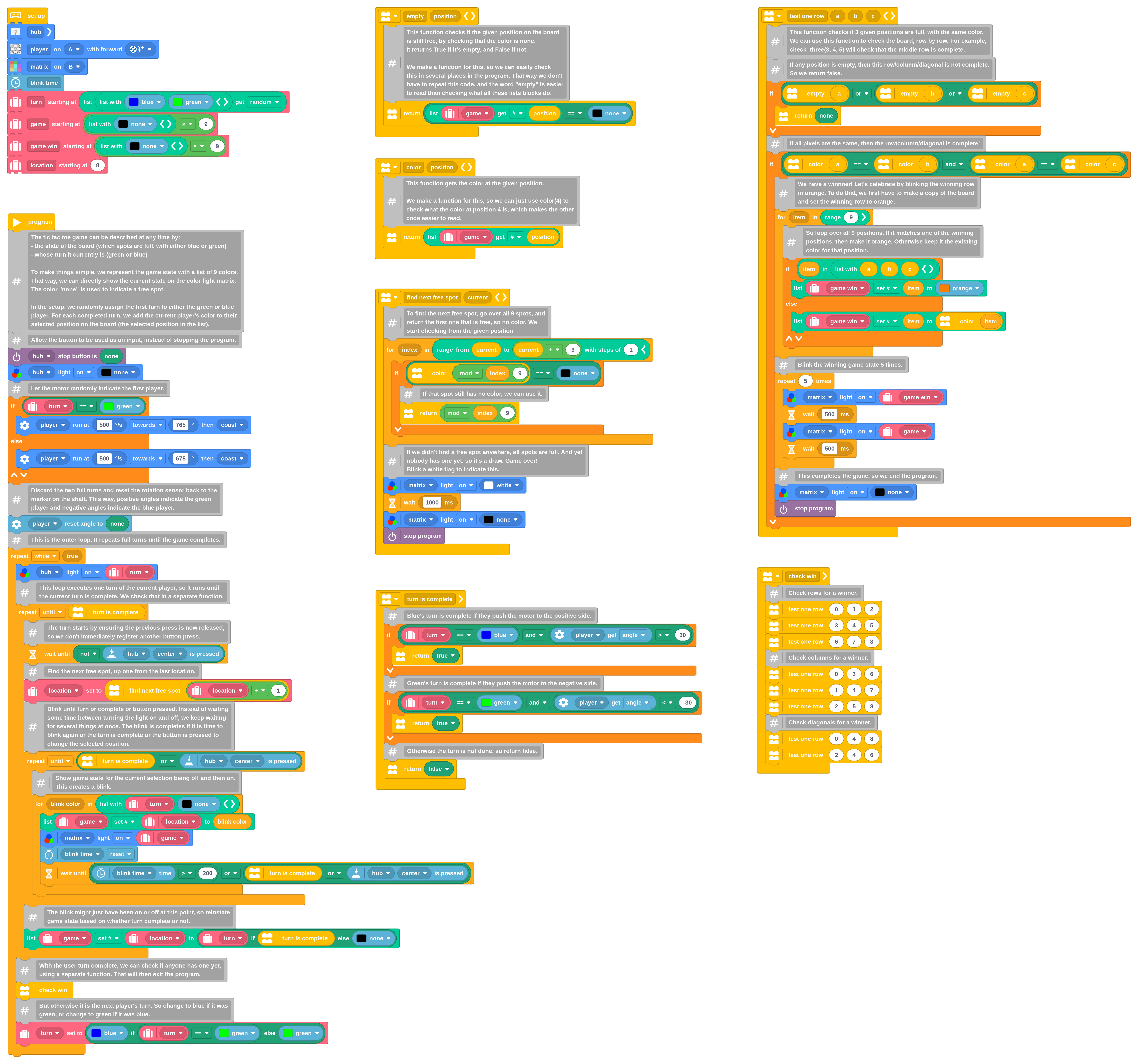
<p>The example below includes numerous comment blocks to help you illustrate how
this program works. Have fun!</p>

<div id="block-program" class="code-header">
    <a href="/assets/programs/tic_tac_toe.py" download="">
        <button class="btn btn--primary download-code-button" aria-label="Download this project">Download block code project</button>
    </a>
</div>

<figure class="" style="margin-top: 0;">
    <a href="/assets/programs/tic_tac_toe.png">
        <img class="responsive-image" src="/assets/programs/tic_tac_toe_small.png" alt="The Tic Tac Toe program." />
    </a>
    
    <figcaption>
    The Tic Tac Toe program.
    </figcaption>
    
</figure>

<h1 id="running-the-pybricks-program">Running the Pybricks program</h1>

<p>This project uses <a href="https://code.pybricks.com/" target="_blank">
<em>Pybricks</em></a> on your LEGO hub. Pybricks makes your creations
come alive and helps you unlock the full potential of your LEGO <em>Technic</em>,
<em>City</em>, <em>MINDSTORMS</em>, <em>BOOST</em>, or <em>Spike</em> sets.</p>

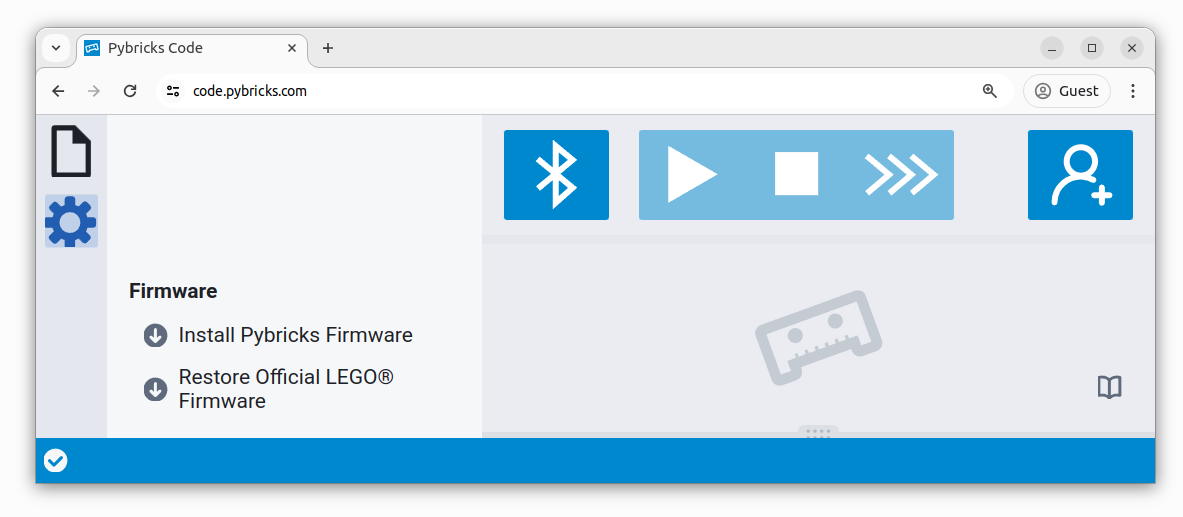
<p>If you haven’t already, install Pybricks on your hub as shown below, or check
out our <a href="/install">getting started guide</a> for more details. You can go
back to the LEGO firmware and apps at any time.</p>

<div style="margin-bottom: 20px; margin-top: 10px;">
<div style="position: relative; display: block; width: 100%; margin-left: auto; margin-right: auto;">
    
    <img class="responsive-image" src="/learn/getting-started/install.png" alt="Install the Pybricks firmware." />


    <div class="label-line" style="top: calc(40%); left: 8%; transform: translateY(-50%); width: 30px; height: 2px;"></div>
    
    <div class="label-text" style="top: 40%; left: calc(8% + 30px); transform: translateY(-50%);">
        Tools
    </div>


    <div class="label-line" style="top: calc(65%); left: 36%; transform: translateY(-50%); width: 30px; height: 2px;"></div>
    
    <div class="label-text" style="top: 65%; left: calc(36% + 30px); transform: translateY(-50%);">
        Install
    </div>


</div>
</div>

<style>
    @media print {
        .label-line {
            -webkit-print-color-adjust: exact;
            print-color-adjust: exact;
            background-color: #3d4144 !important; /* Ensures the background color is applied in print */
        }
    }
    .label-line {
        position: absolute;
        background-color: #3d4144;
    }
    .label-text {
        position: absolute;
        color: #3d4144;
        background-color: rgba(255, 255, 255, 1);
        padding: 2px 5px 2px 5px;
        border: 2px solid #3d4144;
        border-radius: 10px;
        white-space: nowrap;
        font-size: 0.8em;
    }
</style>

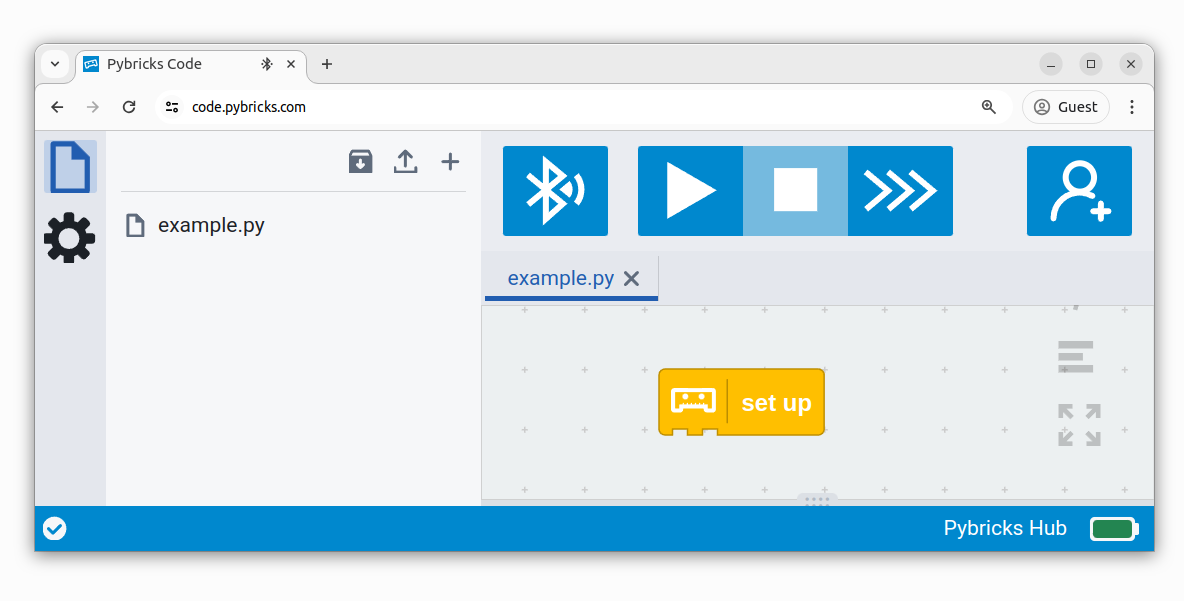
<p>Now import the program you <a href="#block-program">downloaded earlier</a>, as
shown below. Click <i class="fab fa-bluetooth"></i> to connect your hub and ▶ to
start!</p>

<div style="margin-bottom: 20px; margin-top: 10px;">
<div style="position: relative; display: block; width: 100%; margin-left: auto; margin-right: auto;">
    
    <img class="responsive-image" src="/learn/getting-started/import.png" alt="Import a Pybricks Code project." />


    <div class="label-line" style="top: 26%; left: calc(5.5%); transform: translateX(-50%); width: 2px; height: 30px;"></div>
    
    <div class="label-text" style="top: calc(26% + 30px); left: 5.5%; transform: translateX(-50%);">
        files
    </div>


    <div class="label-line" style="top: 30%; left: calc(34.5%); transform: translateX(-50%); width: 2px; height: 30px;"></div>
    
    <div class="label-text" style="top: calc(30% + 30px); left: 34.5%; transform: translateX(-50%);">
        import
    </div>


    <div class="label-line" style="top: 40%; left: calc(20%); transform: translateX(-50%); width: 2px; height: 30px;"></div>
    
    <div class="label-text" style="top: calc(40% + 30px); left: 20%; transform: translateX(-50%);">
        open
    </div>


    <div class="label-line" style="bottom: calc(100% - 28%); left: calc(50%); transform: translateX(-50%); width: 2px; height: 30px;"></div>
    
    <div class="label-text" style="bottom: calc(100% - 28% + 30px); left: 50%; transform: translateX(-50%);">
        connect
    </div>


    <div class="label-line" style="top: calc(32%); left: 59%; transform: translateY(-50%); width: 30px; height: 2px;"></div>
    
    <div class="label-text" style="top: 32%; left: calc(59% + 30px); transform: translateY(-50%);">
        run
    </div>


</div>
</div>

<style>
    @media print {
        .label-line {
            -webkit-print-color-adjust: exact;
            print-color-adjust: exact;
            background-color: #3d4144 !important; /* Ensures the background color is applied in print */
        }
    }
    .label-line {
        position: absolute;
        background-color: #3d4144;
    }
    .label-text {
        position: absolute;
        color: #3d4144;
        background-color: rgba(255, 255, 255, 1);
        padding: 2px 5px 2px 5px;
        border: 2px solid #3d4144;
        border-radius: 10px;
        white-space: nowrap;
        font-size: 0.8em;
    }
</style>

<p>You can run imported block programs even if you’re not signed up. This is a
great way to try out Pybricks and see how it works.</p>

<h1 id="running-it-as-a-python-program">Running it as a Python program</h1>

<p>You can also run this project as a Python (MicroPython) program. The following
code was generated from the <a href="#block-program">block program</a> above.
To run it, create a new empty Python program in Pybricks and copy the code into
it.</p>

<div class="code-header">
    <button class="btn btn--primary copy-code-button" aria-label="Copy code to clipboard">Copy code</button>
</div>

<div class="language-python highlighter-rouge"><div class="highlight"><pre class="highlight"><code><span class="kn">from</span> <span class="nn">pybricks.hubs</span> <span class="kn">import</span> <span class="n">EssentialHub</span>
<span class="kn">from</span> <span class="nn">pybricks.parameters</span> <span class="kn">import</span> <span class="n">Button</span><span class="p">,</span> <span class="n">Color</span><span class="p">,</span> <span class="n">Direction</span><span class="p">,</span> <span class="n">Port</span><span class="p">,</span> <span class="n">Stop</span>
<span class="kn">from</span> <span class="nn">pybricks.pupdevices</span> <span class="kn">import</span> <span class="n">ColorLightMatrix</span><span class="p">,</span> <span class="n">Motor</span>
<span class="kn">from</span> <span class="nn">pybricks.tools</span> <span class="kn">import</span> <span class="n">StopWatch</span><span class="p">,</span> <span class="n">wait</span>
<span class="kn">from</span> <span class="nn">urandom</span> <span class="kn">import</span> <span class="n">choice</span>

<span class="c1"># Set up all devices.
</span><span class="n">hub</span> <span class="o">=</span> <span class="n">EssentialHub</span><span class="p">()</span>
<span class="n">matrix</span> <span class="o">=</span> <span class="n">ColorLightMatrix</span><span class="p">(</span><span class="n">Port</span><span class="p">.</span><span class="n">B</span><span class="p">)</span>
<span class="n">blink_time</span> <span class="o">=</span> <span class="n">StopWatch</span><span class="p">()</span>
<span class="n">player</span> <span class="o">=</span> <span class="n">Motor</span><span class="p">(</span><span class="n">Port</span><span class="p">.</span><span class="n">A</span><span class="p">,</span> <span class="n">Direction</span><span class="p">.</span><span class="n">CLOCKWISE</span><span class="p">)</span>

<span class="c1"># Initialize variables.
</span><span class="n">turn</span> <span class="o">=</span> <span class="n">choice</span><span class="p">([</span><span class="n">Color</span><span class="p">.</span><span class="n">BLUE</span><span class="p">,</span> <span class="n">Color</span><span class="p">.</span><span class="n">GREEN</span><span class="p">])</span>
<span class="n">game</span> <span class="o">=</span> <span class="p">[</span><span class="n">Color</span><span class="p">.</span><span class="n">NONE</span><span class="p">]</span> <span class="o">*</span> <span class="mi">9</span>
<span class="n">game_win</span> <span class="o">=</span> <span class="p">[</span><span class="n">Color</span><span class="p">.</span><span class="n">NONE</span><span class="p">]</span> <span class="o">*</span> <span class="mi">9</span>
<span class="n">location</span> <span class="o">=</span> <span class="mi">8</span>

<span class="k">def</span> <span class="nf">empty</span><span class="p">(</span><span class="n">position</span><span class="p">):</span>
    <span class="c1"># This function checks if the given position on the board
</span>    <span class="c1"># is still free, by checking that the color is none.
</span>    <span class="c1"># It returns True if it's empty, and False if not.
</span>
    <span class="c1"># We make a function for this, so we can easily check
</span>    <span class="c1"># this in several places in the program. That way we don't
</span>    <span class="c1"># have to repeat this code, and the word "empty" is easier
</span>    <span class="c1"># to read than checking what all these lists blocks do.
</span>    <span class="k">return</span> <span class="n">game</span><span class="p">[</span><span class="n">position</span><span class="p">]</span> <span class="o">==</span> <span class="n">Color</span><span class="p">.</span><span class="n">NONE</span>

<span class="k">def</span> <span class="nf">test_one_row</span><span class="p">(</span><span class="n">a</span><span class="p">,</span> <span class="n">b</span><span class="p">,</span> <span class="n">c</span><span class="p">):</span>
    <span class="c1"># This function checks if 3 given positions are full, with the same color.
</span>    <span class="c1"># We can use this function to check the board, row by row. For example,
</span>    <span class="c1"># check_three(3, 4, 5) will check that the middle row is complete.
</span>    <span class="c1"># If any position is empty, then this row/column/diagonal is not complete.
</span>    <span class="c1"># So we return false.
</span>    <span class="k">if</span> <span class="n">empty</span><span class="p">(</span><span class="n">a</span><span class="p">)</span> <span class="ow">or</span> <span class="n">empty</span><span class="p">(</span><span class="n">b</span><span class="p">)</span> <span class="ow">or</span> <span class="n">empty</span><span class="p">(</span><span class="n">c</span><span class="p">):</span>
        <span class="k">return</span> <span class="bp">None</span>
    <span class="c1"># If all pixels are the same, then the row/column/diagonal is complete!
</span>    <span class="k">if</span> <span class="n">color</span><span class="p">(</span><span class="n">a</span><span class="p">)</span> <span class="o">==</span> <span class="n">color</span><span class="p">(</span><span class="n">b</span><span class="p">)</span> <span class="ow">and</span> <span class="n">color</span><span class="p">(</span><span class="n">a</span><span class="p">)</span> <span class="o">==</span> <span class="n">color</span><span class="p">(</span><span class="n">c</span><span class="p">):</span>
        <span class="c1"># We have a winnner! Let's celebrate by blinking the winning row
</span>        <span class="c1"># in orange. To do that, we first have to make a copy of the board
</span>        <span class="c1"># and set the winning row to orange.
</span>        <span class="k">for</span> <span class="n">item</span> <span class="ow">in</span> <span class="nb">range</span><span class="p">(</span><span class="mi">9</span><span class="p">):</span>
            <span class="c1"># So loop over all 9 positions. If it matches one of the winning
</span>            <span class="c1"># positions, then make it orange. Otherwise keep it the existing
</span>            <span class="c1"># color for that position.
</span>            <span class="k">if</span> <span class="n">item</span> <span class="ow">in</span> <span class="p">[</span><span class="n">a</span><span class="p">,</span> <span class="n">b</span><span class="p">,</span> <span class="n">c</span><span class="p">]:</span>
                <span class="n">game_win</span><span class="p">[</span><span class="n">item</span><span class="p">]</span> <span class="o">=</span> <span class="n">Color</span><span class="p">.</span><span class="n">ORANGE</span>
            <span class="k">else</span><span class="p">:</span>
                <span class="n">game_win</span><span class="p">[</span><span class="n">item</span><span class="p">]</span> <span class="o">=</span> <span class="n">color</span><span class="p">(</span><span class="n">item</span><span class="p">)</span>
        <span class="c1"># Blink the winning game state 5 times.
</span>        <span class="k">for</span> <span class="n">count</span> <span class="ow">in</span> <span class="nb">range</span><span class="p">(</span><span class="mi">5</span><span class="p">):</span>
            <span class="n">matrix</span><span class="p">.</span><span class="n">on</span><span class="p">(</span><span class="n">game_win</span><span class="p">)</span>
            <span class="n">wait</span><span class="p">(</span><span class="mi">500</span><span class="p">)</span>
            <span class="n">matrix</span><span class="p">.</span><span class="n">on</span><span class="p">(</span><span class="n">game</span><span class="p">)</span>
            <span class="n">wait</span><span class="p">(</span><span class="mi">500</span><span class="p">)</span>
        <span class="c1"># This completes the game, so we end the program.
</span>        <span class="n">matrix</span><span class="p">.</span><span class="n">on</span><span class="p">(</span><span class="n">Color</span><span class="p">.</span><span class="n">NONE</span><span class="p">)</span>
        <span class="k">raise</span> <span class="nb">SystemExit</span>

<span class="k">def</span> <span class="nf">color</span><span class="p">(</span><span class="n">position</span><span class="p">):</span>
    <span class="c1"># This function gets the color at the given position.
</span>
    <span class="c1"># We make a function for this, so we can just use color(4) to
</span>    <span class="c1"># check what the color at position 4 is, which makes the other
</span>    <span class="c1"># code easier to read.
</span>    <span class="k">return</span> <span class="n">game</span><span class="p">[</span><span class="n">position</span><span class="p">]</span>

<span class="k">def</span> <span class="nf">find_next_free_spot</span><span class="p">(</span><span class="n">current</span><span class="p">):</span>
    <span class="c1"># To find the next free spot, go over all 9 spots, and
</span>    <span class="c1"># return the first one that is free, so no color. We
</span>    <span class="c1"># start checking from the given position
</span>    <span class="k">for</span> <span class="n">index</span> <span class="ow">in</span> <span class="nb">range</span><span class="p">(</span><span class="n">current</span><span class="p">,</span> <span class="n">current</span> <span class="o">+</span> <span class="mi">9</span><span class="p">,</span> <span class="mi">1</span><span class="p">):</span>
        <span class="k">if</span> <span class="n">color</span><span class="p">(</span><span class="n">index</span> <span class="o">%</span> <span class="mi">9</span><span class="p">)</span> <span class="o">==</span> <span class="n">Color</span><span class="p">.</span><span class="n">NONE</span><span class="p">:</span>
            <span class="c1"># If that spot still has no color, we can use it.
</span>            <span class="k">return</span> <span class="n">index</span> <span class="o">%</span> <span class="mi">9</span>
    <span class="c1"># If we didn't find a free spot anywhere, all spots are full. And yet
</span>    <span class="c1"># nobody has one yet. so it's a draw. Game over!
</span>    <span class="c1"># Blink a white flag to indicate this.
</span>    <span class="n">matrix</span><span class="p">.</span><span class="n">on</span><span class="p">(</span><span class="n">Color</span><span class="p">.</span><span class="n">WHITE</span><span class="p">)</span>
    <span class="n">wait</span><span class="p">(</span><span class="mi">1000</span><span class="p">)</span>
    <span class="n">matrix</span><span class="p">.</span><span class="n">on</span><span class="p">(</span><span class="n">Color</span><span class="p">.</span><span class="n">NONE</span><span class="p">)</span>
    <span class="k">raise</span> <span class="nb">SystemExit</span>

<span class="k">def</span> <span class="nf">check_win</span><span class="p">():</span>
    <span class="c1"># Check rows for a winner.
</span>    <span class="n">test_one_row</span><span class="p">(</span><span class="mi">0</span><span class="p">,</span> <span class="mi">1</span><span class="p">,</span> <span class="mi">2</span><span class="p">)</span>
    <span class="n">test_one_row</span><span class="p">(</span><span class="mi">3</span><span class="p">,</span> <span class="mi">4</span><span class="p">,</span> <span class="mi">5</span><span class="p">)</span>
    <span class="n">test_one_row</span><span class="p">(</span><span class="mi">6</span><span class="p">,</span> <span class="mi">7</span><span class="p">,</span> <span class="mi">8</span><span class="p">)</span>
    <span class="c1"># Check columns for a winner.
</span>    <span class="n">test_one_row</span><span class="p">(</span><span class="mi">0</span><span class="p">,</span> <span class="mi">3</span><span class="p">,</span> <span class="mi">6</span><span class="p">)</span>
    <span class="n">test_one_row</span><span class="p">(</span><span class="mi">1</span><span class="p">,</span> <span class="mi">4</span><span class="p">,</span> <span class="mi">7</span><span class="p">)</span>
    <span class="n">test_one_row</span><span class="p">(</span><span class="mi">2</span><span class="p">,</span> <span class="mi">5</span><span class="p">,</span> <span class="mi">8</span><span class="p">)</span>
    <span class="c1"># Check diagonals for a winner.
</span>    <span class="n">test_one_row</span><span class="p">(</span><span class="mi">0</span><span class="p">,</span> <span class="mi">4</span><span class="p">,</span> <span class="mi">8</span><span class="p">)</span>
    <span class="n">test_one_row</span><span class="p">(</span><span class="mi">2</span><span class="p">,</span> <span class="mi">4</span><span class="p">,</span> <span class="mi">6</span><span class="p">)</span>

<span class="k">def</span> <span class="nf">turn_is_complete</span><span class="p">():</span>
    <span class="c1"># Blue's turn is complete if they push the motor to the positive side.
</span>    <span class="k">if</span> <span class="n">turn</span> <span class="o">==</span> <span class="n">Color</span><span class="p">.</span><span class="n">BLUE</span> <span class="ow">and</span> <span class="n">player</span><span class="p">.</span><span class="n">angle</span><span class="p">()</span> <span class="o">&gt;</span> <span class="mi">30</span><span class="p">:</span>
        <span class="k">return</span> <span class="bp">True</span>
    <span class="c1"># Green's turn is complete if they push the motor to the negative side.
</span>    <span class="k">if</span> <span class="n">turn</span> <span class="o">==</span> <span class="n">Color</span><span class="p">.</span><span class="n">GREEN</span> <span class="ow">and</span> <span class="n">player</span><span class="p">.</span><span class="n">angle</span><span class="p">()</span> <span class="o">&lt;</span> <span class="o">-</span><span class="mi">30</span><span class="p">:</span>
        <span class="k">return</span> <span class="bp">True</span>
    <span class="c1"># Otherwise the turn is not done, so return false.
</span>    <span class="k">return</span> <span class="bp">False</span>


<span class="c1"># The main program starts here.
# The tic tac toe game can be described at any time by:
# - the state of the board (which spots are full, with either blue or green)
# - whose turn it currently is (green or blue)
</span>
<span class="c1"># To make things simple, we represent the game state with a list of 9 colors.
# That way, we can directly show the current state on the color light matrix.
# The color "none" is used to indicate a free spot.
</span>
<span class="c1"># In the setup, we randomly assign the first turn to either the green or blue
# player. For each completed turn, we add the current player's color to their
# selected position on the board (the selected position in the list).
# Allow the button to be used as an input, instead of stopping the program.
</span><span class="n">hub</span><span class="p">.</span><span class="n">system</span><span class="p">.</span><span class="n">set_stop_button</span><span class="p">(</span><span class="bp">None</span><span class="p">)</span>
<span class="n">hub</span><span class="p">.</span><span class="n">light</span><span class="p">.</span><span class="n">on</span><span class="p">(</span><span class="n">Color</span><span class="p">.</span><span class="n">NONE</span><span class="p">)</span>
<span class="c1"># Let the motor randomly indicate the first player.
</span><span class="k">if</span> <span class="n">turn</span> <span class="o">==</span> <span class="n">Color</span><span class="p">.</span><span class="n">GREEN</span><span class="p">:</span>
    <span class="n">player</span><span class="p">.</span><span class="n">run_target</span><span class="p">(</span><span class="mi">500</span><span class="p">,</span> <span class="mi">765</span><span class="p">,</span> <span class="n">Stop</span><span class="p">.</span><span class="n">COAST</span><span class="p">)</span>
<span class="k">else</span><span class="p">:</span>
    <span class="n">player</span><span class="p">.</span><span class="n">run_target</span><span class="p">(</span><span class="mi">500</span><span class="p">,</span> <span class="mi">675</span><span class="p">,</span> <span class="n">Stop</span><span class="p">.</span><span class="n">COAST</span><span class="p">)</span>
<span class="c1"># Discard the two full turns and reset the rotation sensor back to the
# marker on the shaft. This way, positive angles indicate the green
# player and negative angles indicate the blue player.
</span><span class="n">player</span><span class="p">.</span><span class="n">reset_angle</span><span class="p">(</span><span class="bp">None</span><span class="p">)</span>
<span class="c1"># This is the outer loop. It repeats full turns until the game completes.
</span><span class="k">while</span> <span class="bp">True</span><span class="p">:</span>
    <span class="n">hub</span><span class="p">.</span><span class="n">light</span><span class="p">.</span><span class="n">on</span><span class="p">(</span><span class="n">turn</span><span class="p">)</span>
    <span class="c1"># This loop executes one turn of the current player, so it runs until
</span>    <span class="c1"># the current turn is complete. We check that in a separate function.
</span>    <span class="k">while</span> <span class="ow">not</span> <span class="n">turn_is_complete</span><span class="p">():</span>
        <span class="c1"># The turn starts by ensuring the previous press is now released,
</span>        <span class="c1"># so we don't immediately register another button press.
</span>        <span class="k">while</span> <span class="n">Button</span><span class="p">.</span><span class="n">CENTER</span> <span class="ow">in</span> <span class="n">hub</span><span class="p">.</span><span class="n">buttons</span><span class="p">.</span><span class="n">pressed</span><span class="p">():</span>
            <span class="n">wait</span><span class="p">(</span><span class="mi">1</span><span class="p">)</span>
        <span class="c1"># Find the next free spot, up one from the last location.
</span>        <span class="n">location</span> <span class="o">=</span> <span class="n">find_next_free_spot</span><span class="p">(</span><span class="n">location</span> <span class="o">+</span> <span class="mi">1</span><span class="p">)</span>
        <span class="c1"># Blink until turn or complete or button pressed. Instead of waiting
</span>        <span class="c1"># some time between turning the light on and off, we keep waiting
</span>        <span class="c1"># for several things at once. The blink is completes if it is time to
</span>        <span class="c1"># blink again or the turn is complete or the button is pressed to
</span>        <span class="c1"># change the selected position.
</span>        <span class="k">while</span> <span class="ow">not</span> <span class="p">(</span><span class="n">turn_is_complete</span><span class="p">()</span> <span class="ow">or</span> <span class="n">Button</span><span class="p">.</span><span class="n">CENTER</span> <span class="ow">in</span> <span class="n">hub</span><span class="p">.</span><span class="n">buttons</span><span class="p">.</span><span class="n">pressed</span><span class="p">()):</span>
            <span class="c1"># Show game state for the current selection being off and then on.
</span>            <span class="c1"># This creates a blink.
</span>            <span class="k">for</span> <span class="n">blink_color</span> <span class="ow">in</span> <span class="p">[</span><span class="n">turn</span><span class="p">,</span> <span class="n">Color</span><span class="p">.</span><span class="n">NONE</span><span class="p">]:</span>
                <span class="n">game</span><span class="p">[</span><span class="n">location</span><span class="p">]</span> <span class="o">=</span> <span class="n">blink_color</span>
                <span class="n">matrix</span><span class="p">.</span><span class="n">on</span><span class="p">(</span><span class="n">game</span><span class="p">)</span>
                <span class="n">blink_time</span><span class="p">.</span><span class="n">reset</span><span class="p">()</span>
                <span class="k">while</span> <span class="ow">not</span> <span class="p">(</span><span class="n">blink_time</span><span class="p">.</span><span class="n">time</span><span class="p">()</span> <span class="o">&gt;</span> <span class="mi">200</span> <span class="ow">or</span> <span class="n">turn_is_complete</span><span class="p">()</span> <span class="ow">or</span> <span class="n">Button</span><span class="p">.</span><span class="n">CENTER</span> <span class="ow">in</span> <span class="n">hub</span><span class="p">.</span><span class="n">buttons</span><span class="p">.</span><span class="n">pressed</span><span class="p">()):</span>
                    <span class="n">wait</span><span class="p">(</span><span class="mi">1</span><span class="p">)</span>
        <span class="c1"># The blink might just have been on or off at this point, so reinstate
</span>        <span class="c1"># game state based on whether turn complete or not.
</span>        <span class="n">game</span><span class="p">[</span><span class="n">location</span><span class="p">]</span> <span class="o">=</span> <span class="n">turn</span> <span class="k">if</span> <span class="n">turn_is_complete</span><span class="p">()</span> <span class="k">else</span> <span class="n">Color</span><span class="p">.</span><span class="n">NONE</span>
    <span class="c1"># With the user turn complete, we can check if anyone has one yet,
</span>    <span class="c1"># using a separate function. That will then exit the program.
</span>    <span class="n">check_win</span><span class="p">()</span>
    <span class="c1"># But otherwise it is the next player's turn. So change to blue if it was
</span>    <span class="c1"># green, or change to green if it was blue.
</span>    <span class="n">turn</span> <span class="o">=</span> <span class="n">Color</span><span class="p">.</span><span class="n">BLUE</span> <span class="k">if</span> <span class="n">turn</span> <span class="o">==</span> <span class="n">Color</span><span class="p">.</span><span class="n">GREEN</span> <span class="k">else</span> <span class="n">Color</span><span class="p">.</span><span class="n">GREEN</span>
</code></pre></div></div>

<figcaption>

Python representation of the block program.

</figcaption>]]></content><author><name>Laurens Valk</name></author><category term="Block Coding" /><category term="Python" /><category term="SPIKE Essential" /><summary type="html"><![CDATA[Learn to build and program a simple Tic Tac Toe game and get inspired to make your programs to play games.]]></summary></entry><entry><title type="html">Simple wireless communication between MicroPython boards via Bluetooth (BLE)</title><link href="https://pybricks.com/project/micropython-ble-communication/" rel="alternate" type="text/html" title="Simple wireless communication between MicroPython boards via Bluetooth (BLE)" /><published>2024-06-03T00:00:00+00:00</published><updated>2024-06-03T00:00:00+00:00</updated><id>https://pybricks.com/project/micropython-ble-communication</id><content type="html" xml:base="https://pybricks.com/project/micropython-ble-communication/"><![CDATA[<p>The hub-to-hub communication feature in Pybricks MicroPython is not restricted
to LEGO hubs alone.</p>

<p>In this project, we will show you how to install a library that enables simple
wireless communication between any number of MicroPython boards that support
Bluetooth Low Energy (BLE).</p>

<p>If you just need to send small amounts of data, this can be a lot simpler than
setting up dedicated connections between the boards.</p>

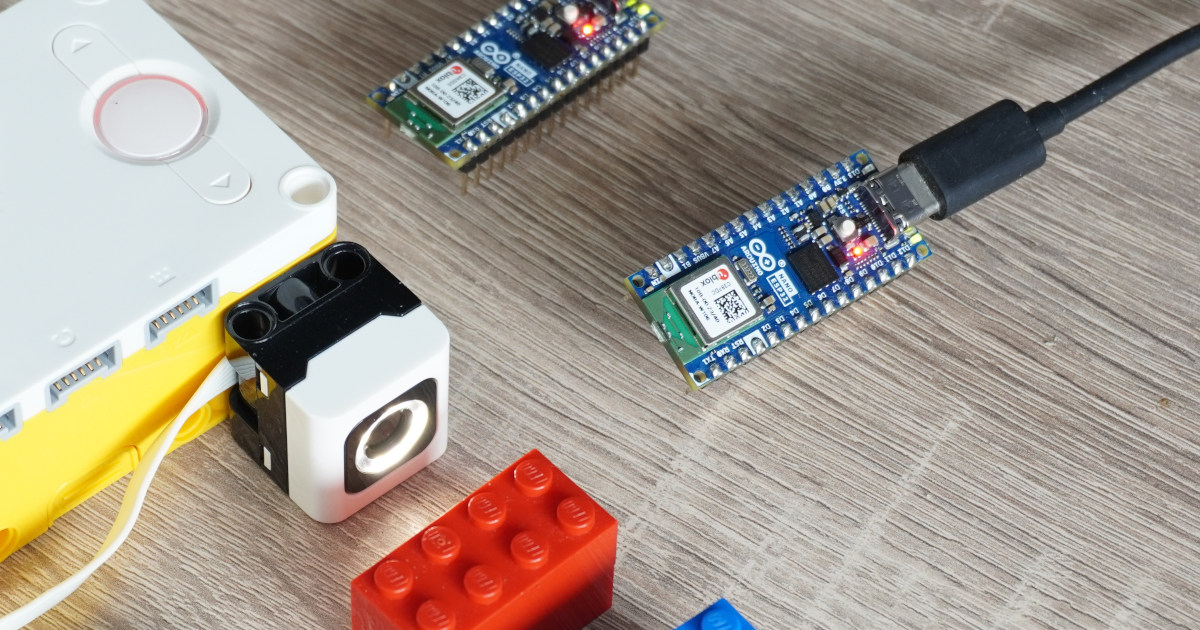
<figure class="" style="margin: 0px 0px 20px 0px;">
    <a href="/project/python/arduino-spike-og.jpg">
        <img src="/project/python/arduino-spike-og.jpg" alt="You can make BLE-enabled MicroPython boards exchange data easily." />
    </a>
    
    <figcaption>
    You can make BLE-enabled MicroPython boards exchange data easily.
    </figcaption>
    
</figure>

<h1 id="how-does-it-work">How does it work?</h1>

<p>Normally when you want to send data between two devices, you need to establish
a connection first. One device can “advertise” itself to describe what it can
do, and the other can “scan” for it.</p>

<p>This advertisement data normally contains information about the device, like
its name and services. Once a scanning device finds an advertising
device, they can connect and start sending data.</p>

<p>In the technique used here, we put the information we want to exchange in the
advertisement data instead. There isn’t much space in the advertisement data,
but it can be enough for simple messages. The advantage is that you don’t need
to establish a connection at all, but you can just keep looking for changing
advertising data and react to it.</p>

<p>We’ve made a library that does this for you, so you can simply send and receive
values without worrying about the details of the Bluetooth protocol.</p>

<h1 id="what-can-you-make">What can you make?</h1>

<p>This technique works great for broadcasting a few numbers or a small text
message. Since no explicit connection is required, any other BLE-enabled device
can scan for these messages and react to them.</p>

<p>This lets you make many-to-many communication networks like the one shown
below. Here, a LEGO hub measures a color and broadcasts it to all other boards
in the area that may be listening, which is two Arduino Nano ESP32s in this
case. They respond to the message by turning on the LED at the corresponding
color.</p>

<p>
    <lite-youtube videoid="q0em83vuwvs"></lite-youtube>
</p>

<p>A similar example is shown below, where a LEGO hub broadcasts tilt and roll
data, which is used by the Arduino Alvik robot to drive around.</p>

<p>
    <lite-youtube videoid="L4FL35y8up0"></lite-youtube>
</p>

<h1 id="installing-the-bleradio-module">Installing the <code class="language-plaintext highlighter-rouge">bleradio</code> module</h1>

<p>The communication tools come pre-installed on the LEGO hubs running Pybricks.</p>

<p>If you want to use this technique with other MicroPython
boards, install the <code class="language-plaintext highlighter-rouge">bleradio</code> library first. If you have <code class="language-plaintext highlighter-rouge">mpremote</code>, just do:</p>

<div class="code-header">
    <button class="btn btn--primary copy-code-button" aria-label="Copy code to clipboard">Copy code</button>
</div>

<div class="language-plaintext highlighter-rouge"><div class="highlight"><pre class="highlight"><code>mpremote mip install https://raw.githubusercontent.com/pybricks/micropython-bleradio/master/bleradio.py
</code></pre></div></div>
<p>Alternatively, download <a href="https://raw.githubusercontent.com/pybricks/micropython-bleradio/master/bleradio.py" download="">
bleradio.py</a> and copy it to your board.</p>

<h1 id="what-can-you-send">What can you send?</h1>

<p>Each hub can broadcast on one “channel” (0 through 255) and observe any number
of channels (each 0 through 255). The channel numbers are used to filter out
the messages you are interested in.</p>

<p>You can send signed integer values, floating point numbers, booleans, strings,
or bytes. Or a list/tuple of these objects.</p>

<p>For example, you can broadcast one of the following:</p>

<div class="language-python highlighter-rouge"><div class="highlight"><pre class="highlight"><code><span class="n">data</span> <span class="o">=</span> <span class="mi">12345</span>

<span class="n">data</span> <span class="o">=</span> <span class="s">"Hello, world!"</span>

<span class="n">data</span> <span class="o">=</span> <span class="sa">b</span><span class="s">"</span><span class="se">\x01\x02\x03</span><span class="s">"</span>

<span class="n">data</span> <span class="o">=</span> <span class="p">(</span><span class="mi">123</span><span class="p">,</span> <span class="mf">3.14</span><span class="p">,</span> <span class="bp">True</span><span class="p">,</span> <span class="s">"Hello World"</span><span class="p">)</span>
</code></pre></div></div>

<p>Boolean values are packed into one byte. All other types are packed into their
respective sizes plus one byte for the type.</p>

<p>Since advertisements payloads are limited to 31 bytes by the Bluetooth spec and
there are 5 bytes of overhead, the combined size of all type headers and values
is limited to 26 bytes.</p>

<p>When no data is observed, the observe method returns None. To stop
broadcasting, use broadcast(None).</p>

<p>The full specification is available in the <a href="https://github.com/pybricks/technical-info/blob/master/pybricks-ble-broadcast-observe.md">protocol</a>.</p>

<h1 id="example-programs">Example programs</h1>

<p>Here is a simple example program that shows how to use the <code class="language-plaintext highlighter-rouge">BLERadio</code> class.
This example shows how you can broadcast data on on a channel and listen to
data on other channels at the same time.</p>

<div class="code-header">
    <button class="btn btn--primary copy-code-button" aria-label="Copy code to clipboard">Copy code</button>
</div>

<div class="language-python highlighter-rouge"><div class="highlight"><pre class="highlight"><code><span class="kn">from</span> <span class="nn">time</span> <span class="kn">import</span> <span class="n">sleep_ms</span>
<span class="kn">from</span> <span class="nn">bleradio</span> <span class="kn">import</span> <span class="n">BLERadio</span>

<span class="c1"># A board can broadcast small amounts of data on one channel. Here we broadcast
# on channel 5. This board will listen for other boards on channels 4 and 18.
</span><span class="n">radio</span> <span class="o">=</span> <span class="n">BLERadio</span><span class="p">(</span><span class="n">broadcast_channel</span><span class="o">=</span><span class="mi">5</span><span class="p">,</span> <span class="n">observe_channels</span><span class="o">=</span><span class="p">[</span><span class="mi">4</span><span class="p">,</span> <span class="mi">18</span><span class="p">])</span>

<span class="c1"># You can run a variant of this script on another board, and have it broadcast
# on channel 4 or 18, for example. This board will then receive it.
</span>
<span class="n">counter</span> <span class="o">=</span> <span class="mi">0</span>

<span class="k">while</span> <span class="bp">True</span><span class="p">:</span>

    <span class="c1"># Data observed on channel 4, as broadcast by another board.
</span>    <span class="c1"># It gives None if no data is detected.
</span>    <span class="n">observed</span> <span class="o">=</span> <span class="n">radio</span><span class="p">.</span><span class="n">observe</span><span class="p">(</span><span class="mi">4</span><span class="p">)</span>
    <span class="k">print</span><span class="p">(</span><span class="n">observed</span><span class="p">)</span>

    <span class="c1"># Broadcast some data on our channel, which is 5.
</span>    <span class="n">radio</span><span class="p">.</span><span class="n">broadcast</span><span class="p">([</span><span class="s">"hello, world!"</span><span class="p">,</span> <span class="mf">3.14</span><span class="p">,</span> <span class="n">counter</span><span class="p">])</span>
    <span class="n">counter</span> <span class="o">+=</span> <span class="mi">1</span>
    <span class="n">sleep_ms</span><span class="p">(</span><span class="mi">100</span><span class="p">)</span>
</code></pre></div></div>

<p>You can make a variant of the program above and run it on a second board.
For example, you can make a program that observes the data on channel 5 and
prints it when it changes.</p>

<p>This example also shows the signal strength, which can be an additional piece
of information to help you roughly determine the distance between the boards.</p>

<div class="code-header">
    <button class="btn btn--primary copy-code-button" aria-label="Copy code to clipboard">Copy code</button>
</div>

<div class="language-python highlighter-rouge"><div class="highlight"><pre class="highlight"><code><span class="kn">from</span> <span class="nn">bleradio</span> <span class="kn">import</span> <span class="n">BLERadio</span>

<span class="n">radio</span> <span class="o">=</span> <span class="n">BLERadio</span><span class="p">(</span><span class="n">observe_channels</span><span class="o">=</span><span class="p">[</span><span class="mi">5</span><span class="p">])</span>

<span class="n">old_data</span> <span class="o">=</span> <span class="bp">None</span>

<span class="k">while</span> <span class="bp">True</span><span class="p">:</span>

    <span class="n">new_data</span> <span class="o">=</span> <span class="n">radio</span><span class="p">.</span><span class="n">observe</span><span class="p">(</span><span class="mi">5</span><span class="p">)</span>
    <span class="n">strength</span> <span class="o">=</span> <span class="n">radio</span><span class="p">.</span><span class="n">signal_strength</span><span class="p">(</span><span class="mi">5</span><span class="p">)</span>

    <span class="k">if</span> <span class="n">new_data</span> <span class="o">==</span> <span class="n">old_data</span><span class="p">:</span>
        <span class="k">continue</span>

    <span class="k">print</span><span class="p">(</span><span class="n">strength</span><span class="p">,</span> <span class="s">"dBm:"</span><span class="p">,</span> <span class="n">new_data</span><span class="p">)</span>
    <span class="n">old_data</span> <span class="o">=</span> <span class="n">new_data</span>
</code></pre></div></div>

<p>Check out the GitHub
<a href="https://github.com/pybricks/micropython-bleradio">repository</a> for more
examples, details, and discussion.</p>

<h1 id="mixing-with-lego-hubs">Mixing with LEGO Hubs</h1>

<p>This communication technique is included in Pybricks by default. This means you
can use any <a href="https://pybricks.com/project/hub-to-hub-communication/">existing program</a> for inspiration.</p>

<p>It does not matter if the LEGO hub uses a Python program or a block-based
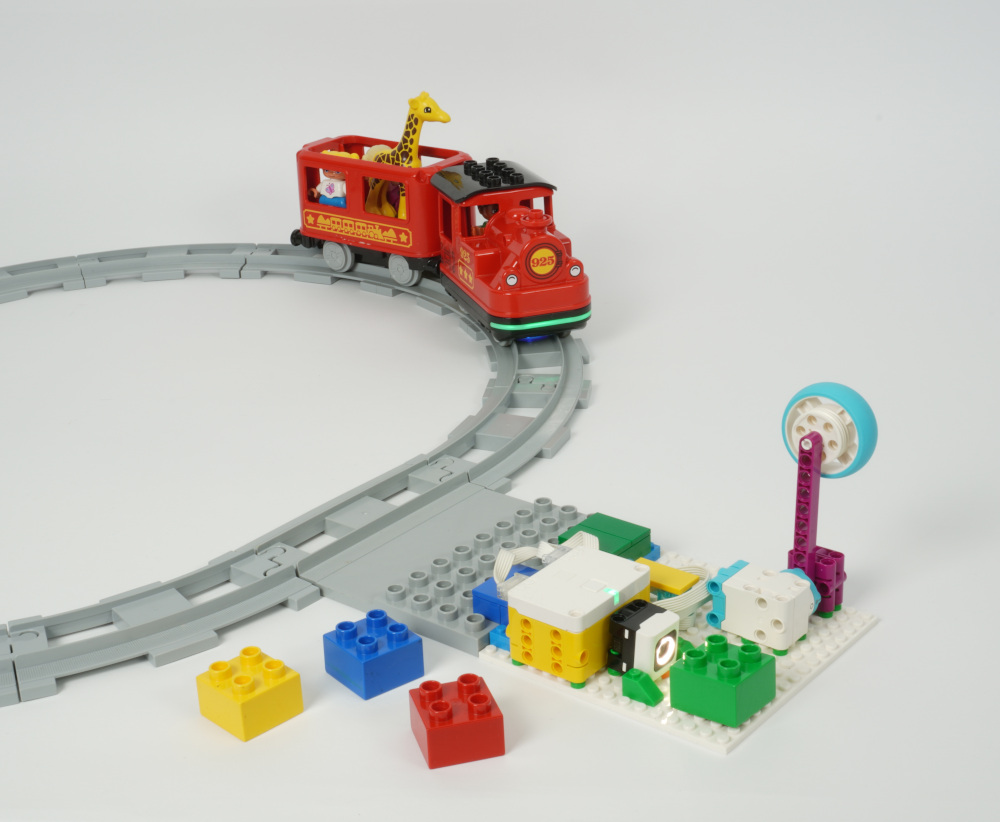
program. Wireless communication works the same way in both cases.</p>]]></content><author><name>Laurens Valk</name></author><category term="Hub to Hub Communication" /><category term="Python" /><summary type="html"><![CDATA[Learn how to install a library that enables simple wireless communication between any number of MicroPython boards without setting up connections.]]></summary></entry><entry><title type="html">Making your own Duplo Train controller</title><link href="https://pybricks.com/project/control-the-duplo-train/" rel="alternate" type="text/html" title="Making your own Duplo Train controller" /><published>2024-05-30T00:00:00+00:00</published><updated>2024-05-30T00:00:00+00:00</updated><id>https://pybricks.com/project/control-the-duplo-train</id><content type="html" xml:base="https://pybricks.com/project/control-the-duplo-train/"><![CDATA[<p>The Duplo train is a great toy. My kids really enjoy playing with the builtin
push-to-drive function and the colored action bricks.</p>

<p>There is also a tablet app that lets kids control the train remotely. But it
turns out you can do so much more, without adding more screen time for your
kids.</p>

<figure class="" style="margin: 0px 0px 20px 0px;">
    <a href="/project/spike-essential/duplo-spike-small.jpg">
        <img src="/project/spike-essential/duplo-spike-small.jpg" />
    </a>
    
</figure>

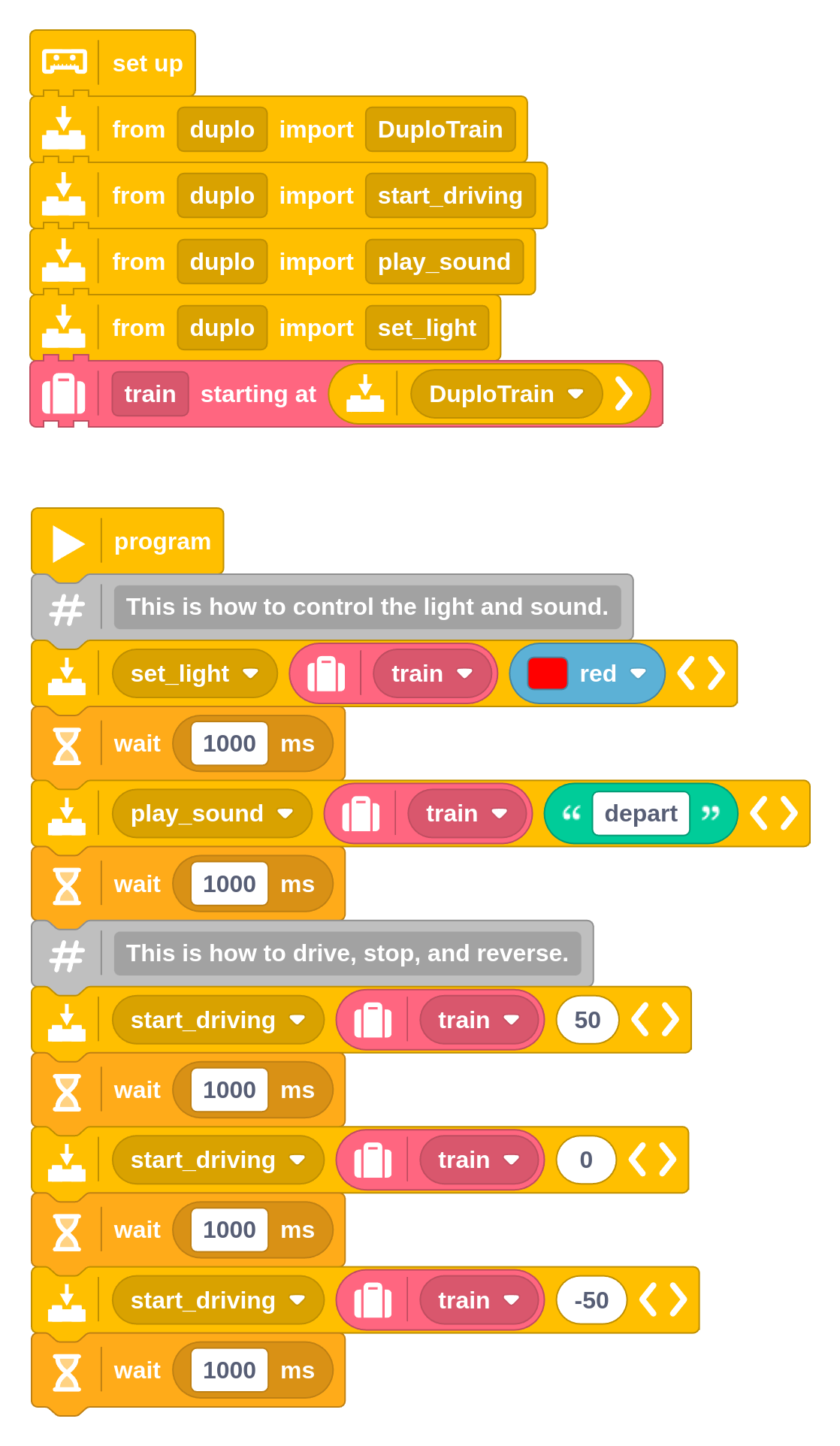
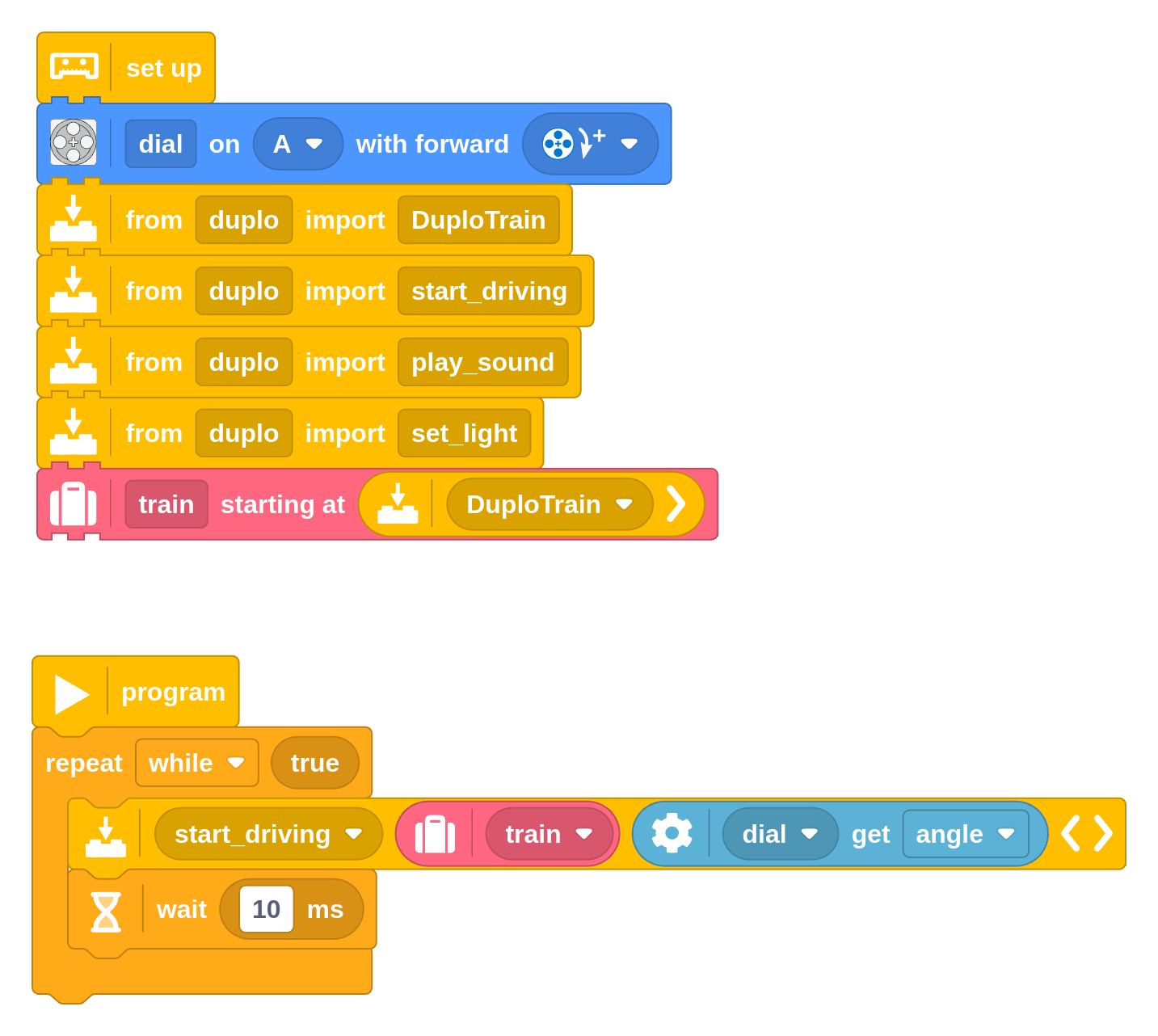
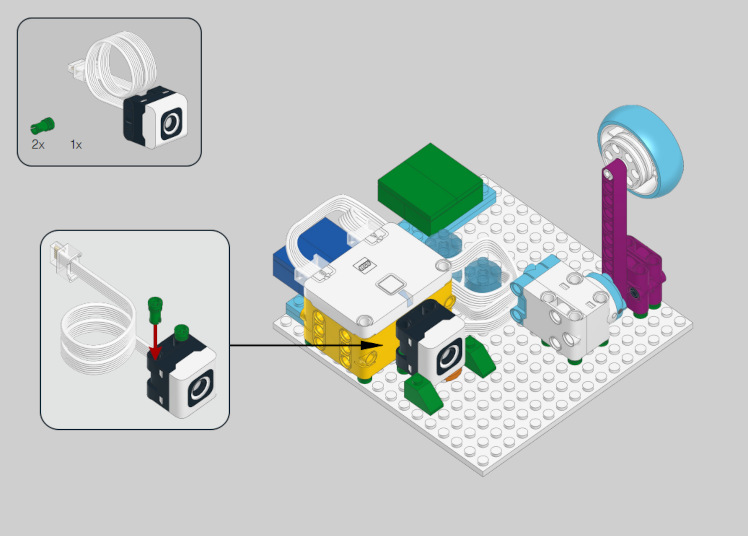
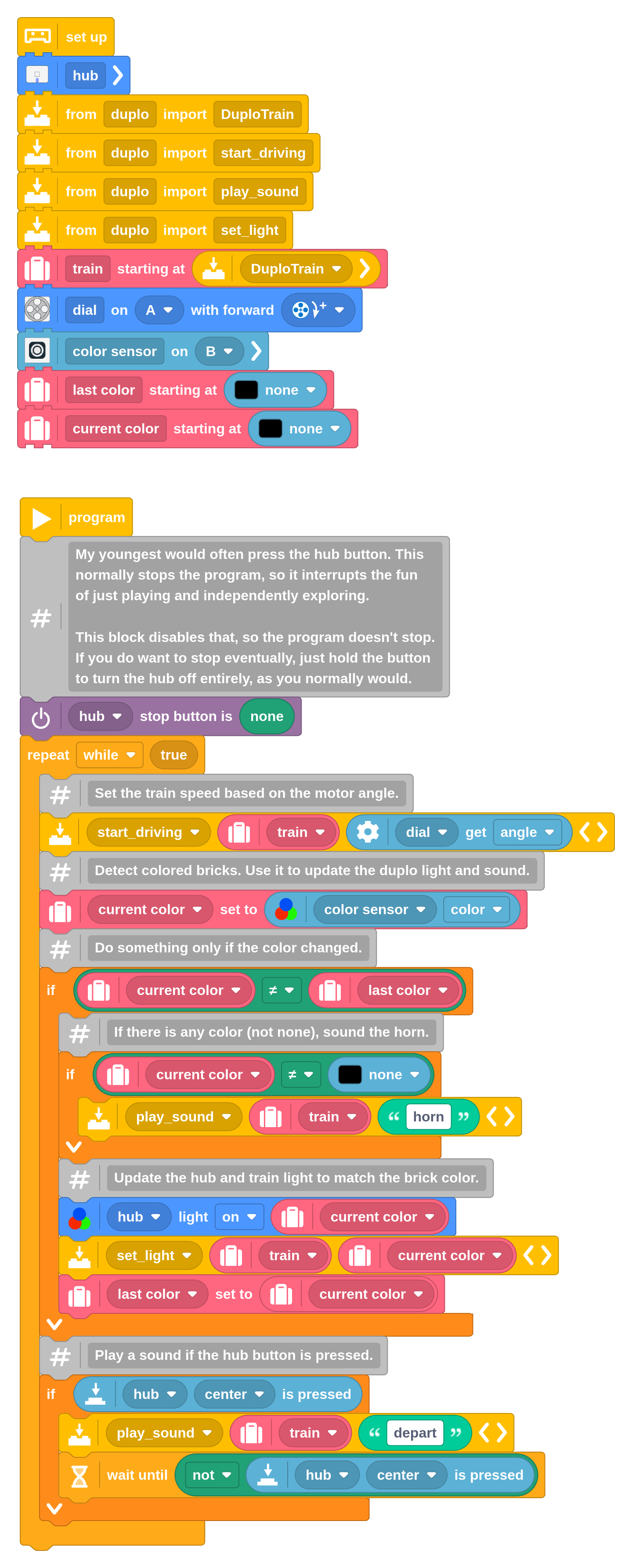
<p>In this article, I’ll show you how you can build your own controller for
the Duplo train using LEGO City, Technic, SPIKE, or MINDSTORMS using Pybricks.</p>

<p>You’ll also find some step-by-step instructions to build a simple lever to
control the train, but we encourage you to get creative and build your own
controller. The possibilities are endless!</p>

<p>
    <lite-youtube videoid="ZCe4QJPy63E"></lite-youtube>
</p>

<p>We’ve made several examples that make controlling the train motor almost as
easy as any other motor.</p>

<h1 id="requirements">Requirements</h1>

<p>To follow this project, you will need the following:</p>

<ul>
  <li>A modern Duplo train such as the <a href="https://brickset.com/sets/10874" target="_blank">LEGO Duplo Steam Train (10874)</a>
 or the <a href="https://brickset.com/sets/10875" target="_blank">LEGO Duplo Cargo Train (10875)</a>
. You’ll know it’s the right one if it has a
light under the base next to the green button, which is normally used to scan
those colored action bricks on the track.</li>
  <li>Any LEGO set with the City Hub, Technic Hub, SPIKE Prime Hub, SPIKE Essential
Hub, or MINDSTORMS Robot Inventor Hub.</li>
  <li>Some motors or sensors to build interactive inputs for your controller, and
some bricks to put it all together.</li>
</ul>

<h1 id="controlling-the-train">Controlling the train</h1>

<p>You’ll control the train using another LEGO hub that runs Pybricks. You can
see the basics in the video above.</p>

<p>The Duplo train itself doesn’t need any changes. It doesn’t run Pybricks.
Instead, this other LEGO hub running Pybricks connects to the Duplo train by
just sending the same Bluetooth commands that the tablet app normally would.</p>

<p>These commands to control the train aren’t included in Pybricks by default since
it is a fairly specific use case. But this is one of those cases where Pybricks
really shines: you can add an extra Python module and still easily use it in your
block programs.</p>

<h2 id="adding-the-duplo-module">Adding the Duplo module</h2>

<p>First, download <a href="/assets/programs/duplo.py" download=""><code class="language-plaintext highlighter-rouge">duplo.py</code></a> and
import it into Pybricks using the “Import file” button at the top of the file
menu in <a href="https://code.pybricks.com/" target="_blank">Pybricks</a>.</p>

<p>While you’re welcome to see what’s inside that file, you won’t need to understand
its contents to use it. Think of it as a module that provides a few functions
that aren’t normally available as Pybricks blocks.</p>

<h2 id="using-the-duplo-module">Using the Duplo module</h2>

<p>To use this new module, you can import the extra functions into your block
programs. Here’s an example:</p>

<div id="block-program" class="code-header">
    <a href="/assets/programs/duplo_example_basic.py" download="">
        <button class="btn btn--primary download-code-button" aria-label="Download this project">Download block code project</button>
    </a>
</div>

<figure class="" style="margin-top: 0;">
    <a href="/assets/programs/duplo_example_basic.png">
        <img class="responsive-image" src="/assets/programs/duplo_example_basic.png" style="--img-width: 70%;" alt="This basic program shows how to control the train motor, sound, and light." />
    </a>
    
    <figcaption>
    This basic program shows how to control the train motor, sound, and light.
    </figcaption>
    
</figure>

<p>You can use these functions:</p>

<ul>
  <li><code class="language-plaintext highlighter-rouge">start_driving</code>: Start the train motor at the given speed (-100% to 100%). Positive
values go forward, and negative values go backward, and 0 stops the motor. Under
25%, it doesn’t move at all.</li>
  <li><code class="language-plaintext highlighter-rouge">play_sound</code>: Play a sound on the train. You can pick one of these names:
<code class="language-plaintext highlighter-rouge">depart</code>, <code class="language-plaintext highlighter-rouge">brake</code>, <code class="language-plaintext highlighter-rouge">water</code>, <code class="language-plaintext highlighter-rouge">horn</code>, or <code class="language-plaintext highlighter-rouge">steam</code>. The <code class="language-plaintext highlighter-rouge">depart</code> sound is kind of
fun and it isn’t normally available with the action bricks!</li>
  <li><code class="language-plaintext highlighter-rouge">set_light</code>: Set the light color of the train. You can choose between
<code class="language-plaintext highlighter-rouge">magenta</code>, <code class="language-plaintext highlighter-rouge">blue</code>, <code class="language-plaintext highlighter-rouge">green</code>, <code class="language-plaintext highlighter-rouge">yellow</code>, <code class="language-plaintext highlighter-rouge">orange</code>, and <code class="language-plaintext highlighter-rouge">red</code>. Choose <code class="language-plaintext highlighter-rouge">none</code> to
turn the light off.</li>
</ul>

<p>If you’re not sure how to set up each of these blocks individually, you can
start from the example given above and just copy, paste, and modify the blocks
as needed.</p>

<h2 id="making-the-connection">Making the connection</h2>

<p>Your LEGO hub will search for the train automatically when you start your
program. Make sure the train is on.</p>

<p>The train is only connectable while the light is blinking white. It does this
for about 30 seconds after you turn it on with the green button. If the light
isn’t blinking, just turn it off and on again.</p>

<h1 id="running-the-pybricks-program">Running the Pybricks program</h1>

<p>This project uses <a href="https://code.pybricks.com/" target="_blank">
<em>Pybricks</em></a> on your LEGO hub. Pybricks makes your creations
come alive and helps you unlock the full potential of your LEGO <em>Technic</em>,
<em>City</em>, <em>MINDSTORMS</em>, <em>BOOST</em>, or <em>Spike</em> sets.</p>

<p>If you haven’t already, install Pybricks on your hub as shown below, or check
out our <a href="/install">getting started guide</a> for more details. You can go
back to the LEGO firmware and apps at any time.</p>

<div style="margin-bottom: 20px; margin-top: 10px;">
<div style="position: relative; display: block; width: 100%; margin-left: auto; margin-right: auto;">
    
    <img class="responsive-image" src="/learn/getting-started/install.png" alt="Install the Pybricks firmware." />


    <div class="label-line" style="top: calc(40%); left: 8%; transform: translateY(-50%); width: 30px; height: 2px;"></div>
    
    <div class="label-text" style="top: 40%; left: calc(8% + 30px); transform: translateY(-50%);">
        Tools
    </div>


    <div class="label-line" style="top: calc(65%); left: 36%; transform: translateY(-50%); width: 30px; height: 2px;"></div>
    
    <div class="label-text" style="top: 65%; left: calc(36% + 30px); transform: translateY(-50%);">
        Install
    </div>


</div>
</div>

<style>
    @media print {
        .label-line {
            -webkit-print-color-adjust: exact;
            print-color-adjust: exact;
            background-color: #3d4144 !important; /* Ensures the background color is applied in print */
        }
    }
    .label-line {
        position: absolute;
        background-color: #3d4144;
    }
    .label-text {
        position: absolute;
        color: #3d4144;
        background-color: rgba(255, 255, 255, 1);
        padding: 2px 5px 2px 5px;
        border: 2px solid #3d4144;
        border-radius: 10px;
        white-space: nowrap;
        font-size: 0.8em;
    }
</style>

<p>Now import the program you <a href="#block-program">downloaded earlier</a>, as
shown below. Click <i class="fab fa-bluetooth"></i> to connect your hub and ▶ to
start!</p>

<div style="margin-bottom: 20px; margin-top: 10px;">
<div style="position: relative; display: block; width: 100%; margin-left: auto; margin-right: auto;">
    
    <img class="responsive-image" src="/learn/getting-started/import.png" alt="Import a Pybricks Code project." />


    <div class="label-line" style="top: 26%; left: calc(5.5%); transform: translateX(-50%); width: 2px; height: 30px;"></div>
    
    <div class="label-text" style="top: calc(26% + 30px); left: 5.5%; transform: translateX(-50%);">
        files
    </div>


    <div class="label-line" style="top: 30%; left: calc(34.5%); transform: translateX(-50%); width: 2px; height: 30px;"></div>
    
    <div class="label-text" style="top: calc(30% + 30px); left: 34.5%; transform: translateX(-50%);">
        import
    </div>


    <div class="label-line" style="top: 40%; left: calc(20%); transform: translateX(-50%); width: 2px; height: 30px;"></div>
    
    <div class="label-text" style="top: calc(40% + 30px); left: 20%; transform: translateX(-50%);">
        open
    </div>


    <div class="label-line" style="bottom: calc(100% - 28%); left: calc(50%); transform: translateX(-50%); width: 2px; height: 30px;"></div>
    
    <div class="label-text" style="bottom: calc(100% - 28% + 30px); left: 50%; transform: translateX(-50%);">
        connect
    </div>


    <div class="label-line" style="top: calc(32%); left: 59%; transform: translateY(-50%); width: 30px; height: 2px;"></div>
    
    <div class="label-text" style="top: 32%; left: calc(59% + 30px); transform: translateY(-50%);">
        run
    </div>


</div>
</div>

<style>
    @media print {
        .label-line {
            -webkit-print-color-adjust: exact;
            print-color-adjust: exact;
            background-color: #3d4144 !important; /* Ensures the background color is applied in print */
        }
    }
    .label-line {
        position: absolute;
        background-color: #3d4144;
    }
    .label-text {
        position: absolute;
        color: #3d4144;
        background-color: rgba(255, 255, 255, 1);
        padding: 2px 5px 2px 5px;
        border: 2px solid #3d4144;
        border-radius: 10px;
        white-space: nowrap;
        font-size: 0.8em;
    }
</style>

<p>You can run imported block programs even if you’re not signed up. This is a
great way to try out Pybricks and see how it works.</p>

<h1 id="making-a-speed-control-dial">Making a speed control dial</h1>

<p>With the basics out of the way, let’s build a simple controller for the train.
You can
use <a href="https://docs.pybricks.com/en/latest/pupdevices/motor.html">any motor with rotation sensors</a>
for this example.</p>

<div id="block-program" class="code-header">
    <a href="/assets/programs/duplo_example_dial.py" download="">
        <button class="btn btn--primary download-code-button" aria-label="Download this project">Download block code project</button>
    </a>
</div>

<figure class="" style="margin-top: 0;">
    <a href="/assets/programs/duplo_example_dial.png">
        <img class="responsive-image" src="/assets/programs/duplo_example_dial.png" alt="Controlling the train speed with the motor as a dial." />
    </a>
    
    <figcaption>
    Controlling the train speed with the motor as a dial.
    </figcaption>
    
</figure>

<p>This program measures the angle of the motor and uses it to control the train
speed.</p>

<p>So if you push the motor to +100 degrees (just over a quarter turn), the
train will go full speed forward. If you push it to -100 degrees, the train will
go full speed backward. And if you put the motor back to the middle, the train
will stop.</p>

<h1 id="adding-lights-and-sounds-to-the-dashboard">Adding lights and sounds to the dashboard</h1>

<p>Let’s take this a step further and add some interactive lights and sounds to
the controller. For the kids, this will make it feel like a real train
dashboard!</p>

<p>
    <lite-youtube videoid="DpQg4trW1y0"></lite-youtube>
</p>

<h2 id="building-instructions">Building instructions</h2>

<p>This example uses the <a href="https://brickset.com/sets/45345" target="_blank">LEGO Education Spike Essential (45345)</a>
 set for inspiration,
but you should be able to do this project with any LEGO set with similar motors
and sensors.</p>

<p>Click the image below to download the instructions.</p>

<p><a href="/project/spike-essential/train-controller-instructions.pdf" download="">
<img src="/project/spike-essential/duplo-spike-instructions.jpg" alt="Building Instructions" />
</a></p>

<h2 id="the-full-program">The full program</h2>

<p>As in the video, the program implements the following actions:</p>

<ul>
  <li>The train motor is controlled by the motor angle as in the previous example.</li>
  <li>The train light color is controlled by what the color sensor sees. You can
put a colored duplo brick in front of it, for example.</li>
  <li>The hub light does the same. This made it easier to understand for the kids
since at this point they are looking at the controller instead of the train.</li>
  <li>It plays a choo-choo sound when a new colored brick is detected.</li>
  <li>It plays the departure sound when the hub button is pressed.</li>
</ul>

<p>If you have a different LEGO hub, just replace the hub setup block at the top
with the one that matches yours.</p>

<div id="block-program" class="code-header">
    <a href="/assets/programs/duplo_example_essential.py" download="">
        <button class="btn btn--primary download-code-button" aria-label="Download this project">Download block code project</button>
    </a>
</div>

<figure class="" style="margin-top: 0;">
    <a href="/assets/programs/duplo_example_essential.png">
        <img class="responsive-image" src="/assets/programs/duplo_example_essential.png" alt="A more elaborate example with lights, sounds, and speed control." />
    </a>
    
    <figcaption>
    A more elaborate example with lights, sounds, and speed control.
    </figcaption>
    
</figure>

<h1 id="using-python-instead">Using Python instead</h1>

<p>If you prefer to use Python instead of block coding, you can! Using that same
imported module discussed above, you can write your main program in Python as
well. Here’s an example to get you started.</p>

<div class="code-header">
    <button class="btn btn--primary copy-code-button" aria-label="Copy code to clipboard">Copy code</button>
</div>

<div class="language-python highlighter-rouge"><div class="highlight"><pre class="highlight"><code><span class="kn">from</span> <span class="nn">pybricks.parameters</span> <span class="kn">import</span> <span class="n">Color</span>
<span class="kn">from</span> <span class="nn">pybricks.tools</span> <span class="kn">import</span> <span class="n">wait</span>

<span class="kn">from</span> <span class="nn">duplo</span> <span class="kn">import</span> <span class="n">DuploTrain</span>

<span class="c1"># Initialize and connect to the train.
</span><span class="n">train</span> <span class="o">=</span> <span class="n">DuploTrain</span><span class="p">()</span>

<span class="c1"># This is how to control the light.
</span><span class="n">train</span><span class="p">.</span><span class="n">set_light</span><span class="p">(</span><span class="n">Color</span><span class="p">.</span><span class="n">RED</span><span class="p">)</span>
<span class="n">wait</span><span class="p">(</span><span class="mi">1000</span><span class="p">)</span>

<span class="c1"># This is how to control the sound.
</span><span class="n">train</span><span class="p">.</span><span class="n">play_sound</span><span class="p">(</span><span class="s">'depart'</span><span class="p">)</span>
<span class="n">wait</span><span class="p">(</span><span class="mi">1000</span><span class="p">)</span>

<span class="c1"># This is how to drive, stop, and reverse.
</span><span class="n">train</span><span class="p">.</span><span class="n">start_driving</span><span class="p">(</span><span class="mi">50</span><span class="p">)</span>
<span class="n">wait</span><span class="p">(</span><span class="mi">1000</span><span class="p">)</span>
<span class="n">train</span><span class="p">.</span><span class="n">stop_driving</span><span class="p">()</span>
<span class="n">wait</span><span class="p">(</span><span class="mi">1000</span><span class="p">)</span>
<span class="n">train</span><span class="p">.</span><span class="n">start_driving</span><span class="p">(</span><span class="o">-</span><span class="mi">50</span><span class="p">)</span>
<span class="n">wait</span><span class="p">(</span><span class="mi">1000</span><span class="p">)</span>

</code></pre></div></div>

<h1 id="digging-deeper">Digging deeper</h1>

<p>If you take a closer look at the <a href="#adding-the-duplo-module">extra module</a>,
you’ll see that it is based on
the <a href="https://lego.github.io/lego-ble-wireless-protocol-docs/">LEGO Wireless 3.0 protocol</a>,
or <code class="language-plaintext highlighter-rouge">LWP3</code> for short. This is the same protocol used to connect with most LEGO hubs that run
the official firmware.</p>

<p>This lets you connect with hubs that aren’t directly
supported by Pybricks. The Duplo train is a good example, but you could do
something similar with the Mario hubs, for example.</p>]]></content><author><name>Laurens Valk</name></author><category term="Block Coding" /><category term="Python" /><category term="SPIKE Prime" /><category term="SPIKE Essential" /><category term="MINDSTORMS Robot Inventor" /><category term="City" /><category term="Technic" /><summary type="html"><![CDATA[You can control the Duplo Train with and LEGO City, Technic, SPIKE, or MINDSTORMS. Here's how you can build your own remote for your kids.]]></summary></entry><entry><title type="html">Building a LEGO MINDSTORMS Robot that balances on a ball</title><link href="https://pybricks.com/project/lego-mindstorms-ball-balancer/" rel="alternate" type="text/html" title="Building a LEGO MINDSTORMS Robot that balances on a ball" /><published>2024-05-28T00:00:00+00:00</published><updated>2024-05-28T00:00:00+00:00</updated><id>https://pybricks.com/project/lego-mindstorms-ball-balancer</id><content type="html" xml:base="https://pybricks.com/project/lego-mindstorms-ball-balancer/"><![CDATA[<p>I’ve always been fascinated by robots that can balance on a ball.</p>

<p>It’s one of
those builds that looks like magic, but it’s ultimately just a fast feedback
loop. The robot constantly measures the tilt of the robot using the gyro
sensor and adjusts the motors to keep the robot upright.</p>

<figure class="" style="margin: 0px 0px 20px 0px;">
    <a href="/project/mindstorms-robot-inventor/balancer/balancer-mindstorms.jpg">
        <img src="/project/mindstorms-robot-inventor/balancer/balancer-mindstorms.jpg" />
    </a>
    
</figure>

<p>In this article, we’ll show you how you can build and program your own
balancing robot using the LEGO MINDSTORMS Robot Inventor set.</p>

<p>You’ll use
Pybricks to code it, which is much faster and stable than the standard
programming environment, which is crucial for balancing robots.</p>

<p>
    <lite-youtube videoid="-T3DuCdERkk"></lite-youtube>
</p>

<h1 id="building-the-robot">Building the robot</h1>

<p>When this set was initially launched, I was super excited to see that it
included the Duplo ball and some small wheels. I immediately thought about
building a balancing robot with it. After many iterations, it worked!</p>

<p>You can build this robot with the elements of the LEGO MINDSTORMS Robot
Inventor set (51515). Click the image below to download the instructions. Just
follow the steps and you’ll have your robot ready in no time.</p>

<p>You can also build this robot with the SPIKE Prime set. While the hub works
the same, it comes with different building elements so you might want to check
out <a href="../lego-spike-ball-balancer/">these instructions instead</a>.</p>

<p><a href="/project/mindstorms-robot-inventor/balancer/ball-balancer-mindstorms-robot-inventor.pdf" download="">
<img src="/project/mindstorms-robot-inventor/balancer/ball-balancer-preview.png" alt="Building Instructions" />
</a></p>

<h1 id="the-balancing-program">The balancing program</h1>

<p>The program below balances the robot along two axes at the same time. One motor
is used to control the x axis using the gyro sensor value of the x axis. The
other motor is used to control the y axis.</p>

<p>The feedback to each motor is a weighted sum of all the signals it needs to
keep at zero. This includes the gyro angle, gyro speed, motor angle, and motor
speed. The weights are tuned to make the robot stable.</p>

<div id="block-program" class="code-header">
    <a href="/assets/programs/ball_balancer_blocks.py" download="">
        <button class="btn btn--primary download-code-button" aria-label="Download this project">Download block code project</button>
    </a>
</div>

<figure class="" style="margin-top: 0;">
    <a href="/assets/programs/ball_balancer_blocks.png">
        <img class="responsive-image" src="/assets/programs/ball_balancer_blocks.png" alt="The ball balancing program" />
    </a>
    
    <figcaption>
    The ball balancing program
    </figcaption>
    
</figure>

<p>When you turn the hub on, leave it on the desk or the floor for a few seconds.
This gives the gyro sensor a chance to calibrate. Then put the robot on top
of the ball and let it stand upright between your hands. Start the program and
carefully let go.</p>

<p>Naturally, you can keep your hands close to prevent it from falling flat, but
it is generally best to not try to help the robot forcefully. It needs to find
its own path!</p>

<p>You can see how this works in the video above.</p>

<h1 id="running-the-pybricks-program">Running the Pybricks program</h1>

<p>This project uses <a href="https://code.pybricks.com/" target="_blank">
<em>Pybricks</em></a> on your LEGO hub. Pybricks makes your creations
come alive and helps you unlock the full potential of your LEGO <em>Technic</em>,
<em>City</em>, <em>MINDSTORMS</em>, <em>BOOST</em>, or <em>Spike</em> sets.</p>

<p>If you haven’t already, install Pybricks on your hub as shown below, or check
out our <a href="/install">getting started guide</a> for more details. You can go
back to the LEGO firmware and apps at any time.</p>

<div style="margin-bottom: 20px; margin-top: 10px;">
<div style="position: relative; display: block; width: 100%; margin-left: auto; margin-right: auto;">
    
    <img class="responsive-image" src="/learn/getting-started/install.png" alt="Install the Pybricks firmware." />


    <div class="label-line" style="top: calc(40%); left: 8%; transform: translateY(-50%); width: 30px; height: 2px;"></div>
    
    <div class="label-text" style="top: 40%; left: calc(8% + 30px); transform: translateY(-50%);">
        Tools
    </div>


    <div class="label-line" style="top: calc(65%); left: 36%; transform: translateY(-50%); width: 30px; height: 2px;"></div>
    
    <div class="label-text" style="top: 65%; left: calc(36% + 30px); transform: translateY(-50%);">
        Install
    </div>


</div>
</div>

<style>
    @media print {
        .label-line {
            -webkit-print-color-adjust: exact;
            print-color-adjust: exact;
            background-color: #3d4144 !important; /* Ensures the background color is applied in print */
        }
    }
    .label-line {
        position: absolute;
        background-color: #3d4144;
    }
    .label-text {
        position: absolute;
        color: #3d4144;
        background-color: rgba(255, 255, 255, 1);
        padding: 2px 5px 2px 5px;
        border: 2px solid #3d4144;
        border-radius: 10px;
        white-space: nowrap;
        font-size: 0.8em;
    }
</style>

<p>Now import the program you <a href="#block-program">downloaded earlier</a>, as
shown below. Click <i class="fab fa-bluetooth"></i> to connect your hub and ▶ to
start!</p>

<div style="margin-bottom: 20px; margin-top: 10px;">
<div style="position: relative; display: block; width: 100%; margin-left: auto; margin-right: auto;">
    
    <img class="responsive-image" src="/learn/getting-started/import.png" alt="Import a Pybricks Code project." />


    <div class="label-line" style="top: 26%; left: calc(5.5%); transform: translateX(-50%); width: 2px; height: 30px;"></div>
    
    <div class="label-text" style="top: calc(26% + 30px); left: 5.5%; transform: translateX(-50%);">
        files
    </div>


    <div class="label-line" style="top: 30%; left: calc(34.5%); transform: translateX(-50%); width: 2px; height: 30px;"></div>
    
    <div class="label-text" style="top: calc(30% + 30px); left: 34.5%; transform: translateX(-50%);">
        import
    </div>


    <div class="label-line" style="top: 40%; left: calc(20%); transform: translateX(-50%); width: 2px; height: 30px;"></div>
    
    <div class="label-text" style="top: calc(40% + 30px); left: 20%; transform: translateX(-50%);">
        open
    </div>


    <div class="label-line" style="bottom: calc(100% - 28%); left: calc(50%); transform: translateX(-50%); width: 2px; height: 30px;"></div>
    
    <div class="label-text" style="bottom: calc(100% - 28% + 30px); left: 50%; transform: translateX(-50%);">
        connect
    </div>


    <div class="label-line" style="top: calc(32%); left: 59%; transform: translateY(-50%); width: 30px; height: 2px;"></div>
    
    <div class="label-text" style="top: 32%; left: calc(59% + 30px); transform: translateY(-50%);">
        run
    </div>


</div>
</div>

<style>
    @media print {
        .label-line {
            -webkit-print-color-adjust: exact;
            print-color-adjust: exact;
            background-color: #3d4144 !important; /* Ensures the background color is applied in print */
        }
    }
    .label-line {
        position: absolute;
        background-color: #3d4144;
    }
    .label-text {
        position: absolute;
        color: #3d4144;
        background-color: rgba(255, 255, 255, 1);
        padding: 2px 5px 2px 5px;
        border: 2px solid #3d4144;
        border-radius: 10px;
        white-space: nowrap;
        font-size: 0.8em;
    }
</style>

<p>You can run imported block programs even if you’re not signed up. This is a
great way to try out Pybricks and see how it works.</p>

<h1 id="running-it-as-a-python-program">Running it as a Python program</h1>

<p>You can also run this project as a Python (MicroPython) program. The following
code was generated from the <a href="#block-program">block program</a> above.
To run it, create a new empty Python program in Pybricks and copy the code into
it.</p>

<div class="code-header">
    <button class="btn btn--primary copy-code-button" aria-label="Copy code to clipboard">Copy code</button>
</div>

<div class="language-python highlighter-rouge"><div class="highlight"><pre class="highlight"><code><span class="kn">from</span> <span class="nn">pybricks.hubs</span> <span class="kn">import</span> <span class="n">InventorHub</span>
<span class="kn">from</span> <span class="nn">pybricks.parameters</span> <span class="kn">import</span> <span class="n">Axis</span><span class="p">,</span> <span class="n">Direction</span><span class="p">,</span> <span class="n">Port</span>
<span class="kn">from</span> <span class="nn">pybricks.pupdevices</span> <span class="kn">import</span> <span class="n">Motor</span>
<span class="kn">from</span> <span class="nn">pybricks.tools</span> <span class="kn">import</span> <span class="n">vector</span><span class="p">,</span> <span class="n">wait</span>
<span class="kn">from</span> <span class="nn">umath</span> <span class="kn">import</span> <span class="n">copysign</span>

<span class="c1"># Set up all devices.
</span><span class="n">hub</span> <span class="o">=</span> <span class="n">InventorHub</span><span class="p">(</span><span class="n">top_side</span><span class="o">=</span><span class="n">vector</span><span class="p">(</span><span class="mi">1</span><span class="p">,</span> <span class="mi">1</span><span class="p">,</span> <span class="mi">0</span><span class="p">),</span> <span class="n">front_side</span><span class="o">=</span><span class="n">vector</span><span class="p">(</span><span class="o">-</span><span class="mi">1</span><span class="p">,</span> <span class="mi">1</span><span class="p">,</span> <span class="mi">0</span><span class="p">))</span>
<span class="n">motor_x</span> <span class="o">=</span> <span class="n">Motor</span><span class="p">(</span><span class="n">Port</span><span class="p">.</span><span class="n">B</span><span class="p">,</span> <span class="n">Direction</span><span class="p">.</span><span class="n">COUNTERCLOCKWISE</span><span class="p">)</span>
<span class="n">motor_y</span> <span class="o">=</span> <span class="n">Motor</span><span class="p">(</span><span class="n">Port</span><span class="p">.</span><span class="n">F</span><span class="p">,</span> <span class="n">Direction</span><span class="p">.</span><span class="n">COUNTERCLOCKWISE</span><span class="p">)</span>

<span class="c1"># Initialize variables.
</span><span class="n">start_angle_x</span> <span class="o">=</span> <span class="n">hub</span><span class="p">.</span><span class="n">imu</span><span class="p">.</span><span class="n">rotation</span><span class="p">(</span><span class="n">Axis</span><span class="p">.</span><span class="n">X</span><span class="p">)</span>
<span class="n">start_angle_y</span> <span class="o">=</span> <span class="n">hub</span><span class="p">.</span><span class="n">imu</span><span class="p">.</span><span class="n">rotation</span><span class="p">(</span><span class="n">Axis</span><span class="p">.</span><span class="n">Y</span><span class="p">)</span>

<span class="k">def</span> <span class="nf">balance</span><span class="p">(</span><span class="n">motor</span><span class="p">,</span> <span class="n">axis</span><span class="p">,</span> <span class="n">start_angle</span><span class="p">,</span> <span class="n">duty</span><span class="p">):</span>
    <span class="c1"># The feedback to the motor is a weighted sum of the gyro angle,
</span>    <span class="c1"># gyro angular velocity, motor angle, and motor speed.
</span>    <span class="n">duty</span> <span class="o">=</span> <span class="mi">88</span> <span class="o">*</span> <span class="p">(</span><span class="n">hub</span><span class="p">.</span><span class="n">imu</span><span class="p">.</span><span class="n">rotation</span><span class="p">(</span><span class="n">axis</span><span class="p">)</span> <span class="o">-</span> <span class="n">start_angle</span><span class="p">)</span> <span class="o">+</span> <span class="n">hub</span><span class="p">.</span><span class="n">imu</span><span class="p">.</span><span class="n">angular_velocity</span><span class="p">(</span><span class="n">axis</span><span class="p">)</span> <span class="o">*</span> <span class="mi">7</span> <span class="o">/</span> <span class="mi">20</span> <span class="o">+</span> <span class="n">motor</span><span class="p">.</span><span class="n">angle</span><span class="p">()</span> <span class="o">*</span> <span class="mi">18</span> <span class="o">/</span> <span class="mi">25</span> <span class="o">+</span> <span class="n">motor</span><span class="p">.</span><span class="n">speed</span><span class="p">(</span><span class="n">window</span><span class="o">=</span><span class="mi">250</span><span class="p">)</span> <span class="o">*</span> <span class="mi">19</span> <span class="o">/</span> <span class="mi">100</span>
    <span class="c1"># The feedback value is applied to the motor. We also add 10% extra
</span>    <span class="c1"># to account for friction. The result is scaled by the battery level so it
</span>    <span class="c1"># behaves the same over time.
</span>    <span class="n">motor</span><span class="p">.</span><span class="n">dc</span><span class="p">(</span><span class="mi">7400</span> <span class="o">*</span> <span class="p">(</span><span class="n">duty</span> <span class="o">+</span> <span class="n">copysign</span><span class="p">(</span><span class="mi">10</span><span class="p">,</span> <span class="n">duty</span><span class="p">))</span> <span class="o">/</span> <span class="n">hub</span><span class="p">.</span><span class="n">battery</span><span class="p">.</span><span class="n">voltage</span><span class="p">())</span>


<span class="c1"># The main program starts here.
# Check that the hub gyro is ready for use.
</span><span class="k">if</span> <span class="ow">not</span> <span class="n">hub</span><span class="p">.</span><span class="n">imu</span><span class="p">.</span><span class="n">ready</span><span class="p">():</span>
    <span class="n">hub</span><span class="p">.</span><span class="n">speaker</span><span class="p">.</span><span class="n">beep</span><span class="p">(</span><span class="mi">500</span><span class="p">,</span> <span class="mi">100</span><span class="p">)</span>
    <span class="k">raise</span> <span class="nb">SystemExit</span>
<span class="n">motor_x</span><span class="p">.</span><span class="n">reset_angle</span><span class="p">(</span><span class="mi">0</span><span class="p">)</span>
<span class="n">motor_y</span><span class="p">.</span><span class="n">reset_angle</span><span class="p">(</span><span class="mi">0</span><span class="p">)</span>
<span class="c1"># Keep balancing forever.
</span><span class="k">while</span> <span class="bp">True</span><span class="p">:</span>
    <span class="n">balance</span><span class="p">(</span><span class="n">motor_x</span><span class="p">,</span> <span class="n">vector</span><span class="p">(</span><span class="mi">1</span><span class="p">,</span> <span class="mi">0</span><span class="p">,</span> <span class="mi">0</span><span class="p">),</span> <span class="n">start_angle_x</span><span class="p">,</span> <span class="mi">0</span><span class="p">)</span>
    <span class="n">balance</span><span class="p">(</span><span class="n">motor_y</span><span class="p">,</span> <span class="n">vector</span><span class="p">(</span><span class="mi">0</span><span class="p">,</span> <span class="mi">1</span><span class="p">,</span> <span class="mi">0</span><span class="p">),</span> <span class="n">start_angle_y</span><span class="p">,</span> <span class="mi">0</span><span class="p">)</span>
    <span class="n">wait</span><span class="p">(</span><span class="mi">10</span><span class="p">)</span>
</code></pre></div></div>

<figcaption>

Python representation of the block program.

</figcaption>]]></content><author><name>Laurens Valk</name></author><category term="Block Coding" /><category term="Python" /><category term="MINDSTORMS Robot Inventor" /><summary type="html"><![CDATA[In this project you'll build a LEGO MINDSTORMS robot that balances on a ball. Includes step-by-step instructions and ready-to-use code.]]></summary></entry><entry><title type="html">Building a LEGO SPIKE Prime Robot that balances on a ball</title><link href="https://pybricks.com/project/lego-spike-ball-balancer/" rel="alternate" type="text/html" title="Building a LEGO SPIKE Prime Robot that balances on a ball" /><published>2024-05-28T00:00:00+00:00</published><updated>2024-05-28T00:00:00+00:00</updated><id>https://pybricks.com/project/lego-spike-ball-balancer</id><content type="html" xml:base="https://pybricks.com/project/lego-spike-ball-balancer/"><![CDATA[<p>Just like Technic Hub, the SPIKE Prime Hub has a really accurate gyro sensor.
What better way to show what it can do than to build a balancing robot?</p>

<figure class="" style="margin: 0px 0px 20px 0px;">
    <a href="/project/spike-prime/balancer/spike-balancer.jpg">
        <img src="/project/spike-prime/balancer/spike-balancer.jpg" />
    </a>
    
</figure>

<p>In this article, we’ll show you how you can build and program your own
balancing robot using LEGO SPIKE Prime.</p>

<h1 id="building-the-robot">Building the robot</h1>

<p>You can build it with the SPIKE Prime core and expansions sets. It doesn’t use
that many pieces, so you may be able to build it from spare pieces even if you
don’t have the expansion set. The ball comes in <a href="https://brickset.com/sets/containing-part-4156530">various LEGO and Duplo
sets</a> and is available on
Bricklink for less than $1.</p>

<p>You can also build this robot with the MINDSTORMS Robot Inventor set. While the hub works
the same, it comes with different building elements. Check
out <a href="../lego-mindstorms-ball-balancer/">these instructions instead</a>.</p>

<p>Click the image below to download the instructions. Just
follow the steps and you’ll have your robot ready in no time.</p>

<p><a href="/project/spike-prime/balancer/ball-balancer-spike-prime.pdf" download="">
<img src="/project/spike-prime/balancer/ball-balancer-spike-prime-preview.png" alt="Building Instructions" />
</a></p>

<h1 id="the-balancing-program">The balancing program</h1>

<p>The program below balances the robot along two axes at the same time. One motor
is used to control the x axis using the gyro sensor value of the x axis. The
other motor is used to control the y axis.</p>

<p>The feedback to each motor is a weighted sum of all the signals it needs to
keep at zero. This includes the gyro angle, gyro speed, motor angle, and motor
speed. The weights are tuned to make the robot stable.</p>

<div id="block-program" class="code-header">
    <a href="/assets/programs/ball_balancer_blocks.py" download="">
        <button class="btn btn--primary download-code-button" aria-label="Download this project">Download block code project</button>
    </a>
</div>

<figure class="" style="margin-top: 0;">
    <a href="/assets/programs/ball_balancer_blocks.png">
        <img class="responsive-image" src="/assets/programs/ball_balancer_blocks.png" alt="The ball balancing program" />
    </a>
    
    <figcaption>
    The ball balancing program
    </figcaption>
    
</figure>

<p>When you turn the hub on, leave it on the desk or the floor for a few seconds.
This gives the gyro sensor a chance to calibrate. Then put the robot on top
of the ball and let it stand upright between your hands. Start the program and
carefully let go.</p>

<p>Naturally, you can keep your hands close to prevent it from falling flat, but
it is generally best to not try to help the robot forcefully. It needs to find
its own path!</p>

<p>You can see how this works in the video below.</p>

<p>
    <lite-youtube videoid="MlMp89KMYjQ"></lite-youtube>
</p>

<h1 id="running-the-pybricks-program">Running the Pybricks program</h1>

<p>This project uses <a href="https://code.pybricks.com/" target="_blank">
<em>Pybricks</em></a> on your LEGO hub. Pybricks makes your creations
come alive and helps you unlock the full potential of your LEGO <em>Technic</em>,
<em>City</em>, <em>MINDSTORMS</em>, <em>BOOST</em>, or <em>Spike</em> sets.</p>

<p>If you haven’t already, install Pybricks on your hub as shown below, or check
out our <a href="/install">getting started guide</a> for more details. You can go
back to the LEGO firmware and apps at any time.</p>

<div style="margin-bottom: 20px; margin-top: 10px;">
<div style="position: relative; display: block; width: 100%; margin-left: auto; margin-right: auto;">
    
    <img class="responsive-image" src="/learn/getting-started/install.png" alt="Install the Pybricks firmware." />


    <div class="label-line" style="top: calc(40%); left: 8%; transform: translateY(-50%); width: 30px; height: 2px;"></div>
    
    <div class="label-text" style="top: 40%; left: calc(8% + 30px); transform: translateY(-50%);">
        Tools
    </div>


    <div class="label-line" style="top: calc(65%); left: 36%; transform: translateY(-50%); width: 30px; height: 2px;"></div>
    
    <div class="label-text" style="top: 65%; left: calc(36% + 30px); transform: translateY(-50%);">
        Install
    </div>


</div>
</div>

<style>
    @media print {
        .label-line {
            -webkit-print-color-adjust: exact;
            print-color-adjust: exact;
            background-color: #3d4144 !important; /* Ensures the background color is applied in print */
        }
    }
    .label-line {
        position: absolute;
        background-color: #3d4144;
    }
    .label-text {
        position: absolute;
        color: #3d4144;
        background-color: rgba(255, 255, 255, 1);
        padding: 2px 5px 2px 5px;
        border: 2px solid #3d4144;
        border-radius: 10px;
        white-space: nowrap;
        font-size: 0.8em;
    }
</style>

<p>Now import the program you <a href="#block-program">downloaded earlier</a>, as
shown below. Click <i class="fab fa-bluetooth"></i> to connect your hub and ▶ to
start!</p>

<div style="margin-bottom: 20px; margin-top: 10px;">
<div style="position: relative; display: block; width: 100%; margin-left: auto; margin-right: auto;">
    
    <img class="responsive-image" src="/learn/getting-started/import.png" alt="Import a Pybricks Code project." />


    <div class="label-line" style="top: 26%; left: calc(5.5%); transform: translateX(-50%); width: 2px; height: 30px;"></div>
    
    <div class="label-text" style="top: calc(26% + 30px); left: 5.5%; transform: translateX(-50%);">
        files
    </div>


    <div class="label-line" style="top: 30%; left: calc(34.5%); transform: translateX(-50%); width: 2px; height: 30px;"></div>
    
    <div class="label-text" style="top: calc(30% + 30px); left: 34.5%; transform: translateX(-50%);">
        import
    </div>


    <div class="label-line" style="top: 40%; left: calc(20%); transform: translateX(-50%); width: 2px; height: 30px;"></div>
    
    <div class="label-text" style="top: calc(40% + 30px); left: 20%; transform: translateX(-50%);">
        open
    </div>


    <div class="label-line" style="bottom: calc(100% - 28%); left: calc(50%); transform: translateX(-50%); width: 2px; height: 30px;"></div>
    
    <div class="label-text" style="bottom: calc(100% - 28% + 30px); left: 50%; transform: translateX(-50%);">
        connect
    </div>


    <div class="label-line" style="top: calc(32%); left: 59%; transform: translateY(-50%); width: 30px; height: 2px;"></div>
    
    <div class="label-text" style="top: 32%; left: calc(59% + 30px); transform: translateY(-50%);">
        run
    </div>


</div>
</div>

<style>
    @media print {
        .label-line {
            -webkit-print-color-adjust: exact;
            print-color-adjust: exact;
            background-color: #3d4144 !important; /* Ensures the background color is applied in print */
        }
    }
    .label-line {
        position: absolute;
        background-color: #3d4144;
    }
    .label-text {
        position: absolute;
        color: #3d4144;
        background-color: rgba(255, 255, 255, 1);
        padding: 2px 5px 2px 5px;
        border: 2px solid #3d4144;
        border-radius: 10px;
        white-space: nowrap;
        font-size: 0.8em;
    }
</style>

<p>You can run imported block programs even if you’re not signed up. This is a
great way to try out Pybricks and see how it works.</p>

<h1 id="running-it-as-a-python-program">Running it as a Python program</h1>

<p>You can also run this project as a Python (MicroPython) program. The following
code was generated from the <a href="#block-program">block program</a> above.
To run it, create a new empty Python program in Pybricks and copy the code into
it.</p>

<div class="code-header">
    <button class="btn btn--primary copy-code-button" aria-label="Copy code to clipboard">Copy code</button>
</div>

<div class="language-python highlighter-rouge"><div class="highlight"><pre class="highlight"><code><span class="kn">from</span> <span class="nn">pybricks.hubs</span> <span class="kn">import</span> <span class="n">InventorHub</span>
<span class="kn">from</span> <span class="nn">pybricks.parameters</span> <span class="kn">import</span> <span class="n">Axis</span><span class="p">,</span> <span class="n">Direction</span><span class="p">,</span> <span class="n">Port</span>
<span class="kn">from</span> <span class="nn">pybricks.pupdevices</span> <span class="kn">import</span> <span class="n">Motor</span>
<span class="kn">from</span> <span class="nn">pybricks.tools</span> <span class="kn">import</span> <span class="n">vector</span><span class="p">,</span> <span class="n">wait</span>
<span class="kn">from</span> <span class="nn">umath</span> <span class="kn">import</span> <span class="n">copysign</span>

<span class="c1"># Set up all devices.
</span><span class="n">hub</span> <span class="o">=</span> <span class="n">InventorHub</span><span class="p">(</span><span class="n">top_side</span><span class="o">=</span><span class="n">vector</span><span class="p">(</span><span class="mi">1</span><span class="p">,</span> <span class="mi">1</span><span class="p">,</span> <span class="mi">0</span><span class="p">),</span> <span class="n">front_side</span><span class="o">=</span><span class="n">vector</span><span class="p">(</span><span class="o">-</span><span class="mi">1</span><span class="p">,</span> <span class="mi">1</span><span class="p">,</span> <span class="mi">0</span><span class="p">))</span>
<span class="n">motor_x</span> <span class="o">=</span> <span class="n">Motor</span><span class="p">(</span><span class="n">Port</span><span class="p">.</span><span class="n">B</span><span class="p">,</span> <span class="n">Direction</span><span class="p">.</span><span class="n">COUNTERCLOCKWISE</span><span class="p">)</span>
<span class="n">motor_y</span> <span class="o">=</span> <span class="n">Motor</span><span class="p">(</span><span class="n">Port</span><span class="p">.</span><span class="n">F</span><span class="p">,</span> <span class="n">Direction</span><span class="p">.</span><span class="n">COUNTERCLOCKWISE</span><span class="p">)</span>

<span class="c1"># Initialize variables.
</span><span class="n">start_angle_x</span> <span class="o">=</span> <span class="n">hub</span><span class="p">.</span><span class="n">imu</span><span class="p">.</span><span class="n">rotation</span><span class="p">(</span><span class="n">Axis</span><span class="p">.</span><span class="n">X</span><span class="p">)</span>
<span class="n">start_angle_y</span> <span class="o">=</span> <span class="n">hub</span><span class="p">.</span><span class="n">imu</span><span class="p">.</span><span class="n">rotation</span><span class="p">(</span><span class="n">Axis</span><span class="p">.</span><span class="n">Y</span><span class="p">)</span>

<span class="k">def</span> <span class="nf">balance</span><span class="p">(</span><span class="n">motor</span><span class="p">,</span> <span class="n">axis</span><span class="p">,</span> <span class="n">start_angle</span><span class="p">,</span> <span class="n">duty</span><span class="p">):</span>
    <span class="c1"># The feedback to the motor is a weighted sum of the gyro angle,
</span>    <span class="c1"># gyro angular velocity, motor angle, and motor speed.
</span>    <span class="n">duty</span> <span class="o">=</span> <span class="mi">88</span> <span class="o">*</span> <span class="p">(</span><span class="n">hub</span><span class="p">.</span><span class="n">imu</span><span class="p">.</span><span class="n">rotation</span><span class="p">(</span><span class="n">axis</span><span class="p">)</span> <span class="o">-</span> <span class="n">start_angle</span><span class="p">)</span> <span class="o">+</span> <span class="n">hub</span><span class="p">.</span><span class="n">imu</span><span class="p">.</span><span class="n">angular_velocity</span><span class="p">(</span><span class="n">axis</span><span class="p">)</span> <span class="o">*</span> <span class="mi">7</span> <span class="o">/</span> <span class="mi">20</span> <span class="o">+</span> <span class="n">motor</span><span class="p">.</span><span class="n">angle</span><span class="p">()</span> <span class="o">*</span> <span class="mi">18</span> <span class="o">/</span> <span class="mi">25</span> <span class="o">+</span> <span class="n">motor</span><span class="p">.</span><span class="n">speed</span><span class="p">(</span><span class="n">window</span><span class="o">=</span><span class="mi">250</span><span class="p">)</span> <span class="o">*</span> <span class="mi">19</span> <span class="o">/</span> <span class="mi">100</span>
    <span class="c1"># The feedback value is applied to the motor. We also add 10% extra
</span>    <span class="c1"># to account for friction. The result is scaled by the battery level so it
</span>    <span class="c1"># behaves the same over time.
</span>    <span class="n">motor</span><span class="p">.</span><span class="n">dc</span><span class="p">(</span><span class="mi">7400</span> <span class="o">*</span> <span class="p">(</span><span class="n">duty</span> <span class="o">+</span> <span class="n">copysign</span><span class="p">(</span><span class="mi">10</span><span class="p">,</span> <span class="n">duty</span><span class="p">))</span> <span class="o">/</span> <span class="n">hub</span><span class="p">.</span><span class="n">battery</span><span class="p">.</span><span class="n">voltage</span><span class="p">())</span>


<span class="c1"># The main program starts here.
# Check that the hub gyro is ready for use.
</span><span class="k">if</span> <span class="ow">not</span> <span class="n">hub</span><span class="p">.</span><span class="n">imu</span><span class="p">.</span><span class="n">ready</span><span class="p">():</span>
    <span class="n">hub</span><span class="p">.</span><span class="n">speaker</span><span class="p">.</span><span class="n">beep</span><span class="p">(</span><span class="mi">500</span><span class="p">,</span> <span class="mi">100</span><span class="p">)</span>
    <span class="k">raise</span> <span class="nb">SystemExit</span>
<span class="n">motor_x</span><span class="p">.</span><span class="n">reset_angle</span><span class="p">(</span><span class="mi">0</span><span class="p">)</span>
<span class="n">motor_y</span><span class="p">.</span><span class="n">reset_angle</span><span class="p">(</span><span class="mi">0</span><span class="p">)</span>
<span class="c1"># Keep balancing forever.
</span><span class="k">while</span> <span class="bp">True</span><span class="p">:</span>
    <span class="n">balance</span><span class="p">(</span><span class="n">motor_x</span><span class="p">,</span> <span class="n">vector</span><span class="p">(</span><span class="mi">1</span><span class="p">,</span> <span class="mi">0</span><span class="p">,</span> <span class="mi">0</span><span class="p">),</span> <span class="n">start_angle_x</span><span class="p">,</span> <span class="mi">0</span><span class="p">)</span>
    <span class="n">balance</span><span class="p">(</span><span class="n">motor_y</span><span class="p">,</span> <span class="n">vector</span><span class="p">(</span><span class="mi">0</span><span class="p">,</span> <span class="mi">1</span><span class="p">,</span> <span class="mi">0</span><span class="p">),</span> <span class="n">start_angle_y</span><span class="p">,</span> <span class="mi">0</span><span class="p">)</span>
    <span class="n">wait</span><span class="p">(</span><span class="mi">10</span><span class="p">)</span>
</code></pre></div></div>

<figcaption>

Python representation of the block program.

</figcaption>]]></content><author><name>Laurens Valk</name></author><category term="Block Coding" /><category term="Python" /><category term="SPIKE Prime" /><summary type="html"><![CDATA[In this project you'll build a LEGO SPIKE Prime robot that balances on a ball. Includes step-by-step instructions and ready-to-use code.]]></summary></entry><entry><title type="html">How to download multiple Pybricks programs with your own menu</title><link href="https://pybricks.com/project/spike-hub-menu/" rel="alternate" type="text/html" title="How to download multiple Pybricks programs with your own menu" /><published>2024-05-24T00:00:00+00:00</published><updated>2024-05-24T00:00:00+00:00</updated><id>https://pybricks.com/project/spike-hub-menu</id><content type="html" xml:base="https://pybricks.com/project/spike-hub-menu/"><![CDATA[<p>Normally, only one program is saved on the hub. This usually makes it easy to
find and start your latest project. And it’s especially practical on hubs
without a display.</p>

<p>But the SPIKE Prime Hub and the MINDSTORMS Robot Inventor hub have plenty of
space for multiple programs. Downloading multiple programs is useful in
competitions like FLL or WRO, where you might want to break down your programs into
several missions.</p>

<p>This method differs from the conventional program “slots”, but it’s easy to
set up and you have much more flexibility in how your mission programs work.</p>

<p>
    <lite-youtube videoid="J_mftE2OUdY"></lite-youtube>
</p>

<p>This article shows how you can download multiple programs, and add a simple
menu that helps you start your selected program using the buttons on the hub.</p>

<p>You can use numbers in your menu, but also letters and symbols. This is often
way easier to remember on competition day!</p>

<h1 id="multiple-mission-programs">Multiple mission programs</h1>

<p>For the purpose of this article, let’s assume we have three “mission” programs.
These programs are very simple, but you can do this with programs of any size.</p>

<p>If you prefer to use Python for your missions, that’s fine too.</p>

<div id="block-program" class="code-header">
    <a href="/assets/programs/hello_world.py" download="">
        <button class="btn btn--primary download-code-button" aria-label="Download this project">Download block code project</button>
    </a>
</div>

<figure class="" style="margin-top: 0;">
    <a href="/assets/programs/hello_world.png">
        <img class="responsive-image" src="/assets/programs/hello_world.png" style="--img-width: 70%;" alt="The 'hello_world' program" />
    </a>
    
    <figcaption>
    The 'hello_world' program
    </figcaption>
    
</figure>

<div id="block-program" class="code-header">
    <a href="/assets/programs/sound.py" download="">
        <button class="btn btn--primary download-code-button" aria-label="Download this project">Download block code project</button>
    </a>
</div>

<figure class="" style="margin-top: 0;">
    <a href="/assets/programs/sound.png">
        <img class="responsive-image" src="/assets/programs/sound.png" style="--img-width: 60%;" alt="The 'sound' program" />
    </a>
    
    <figcaption>
    The 'sound' program
    </figcaption>
    
</figure>

<div id="block-program" class="code-header">
    <a href="/assets/programs/light.py" download="">
        <button class="btn btn--primary download-code-button" aria-label="Download this project">Download block code project</button>
    </a>
</div>

<figure class="" style="margin-top: 0;">
    <a href="/assets/programs/light.png">
        <img class="responsive-image" src="/assets/programs/light.png" style="--img-width: 55%;" alt="The 'light' program" />
    </a>
    
    <figcaption>
    The 'light' program
    </figcaption>
    
</figure>

<h1 id="adding-a-menu-program">Adding a menu program</h1>

<p>The next step is to add a “main program” that acts as your own menu.
In this example, we’ll make a menu with the letters:</p>
<ul>
  <li><code class="language-plaintext highlighter-rouge">H</code> to start the <code class="language-plaintext highlighter-rouge">hello_world</code> program</li>
  <li><code class="language-plaintext highlighter-rouge">S</code> to start the <code class="language-plaintext highlighter-rouge">sound</code> program</li>
  <li><code class="language-plaintext highlighter-rouge">L</code> to start the <code class="language-plaintext highlighter-rouge">light</code> program</li>
</ul>

<p>To run it, create a new <em>Python</em> program. You can pick any name, such as <code class="language-plaintext highlighter-rouge">menu</code>
and paste the following code into it.</p>

<div class="code-header">
    <button class="btn btn--primary copy-code-button" aria-label="Copy code to clipboard">Copy code</button>
</div>

<div class="language-python highlighter-rouge"><div class="highlight"><pre class="highlight"><code><span class="kn">from</span> <span class="nn">pybricks.tools</span> <span class="kn">import</span> <span class="n">hub_menu</span>

<span class="c1"># Make a menu to choose a letter. You can also use numbers.
</span><span class="n">selected</span> <span class="o">=</span> <span class="n">hub_menu</span><span class="p">(</span><span class="s">"H"</span><span class="p">,</span> <span class="s">"S"</span><span class="p">,</span> <span class="s">"L"</span><span class="p">)</span>

<span class="c1"># Based on the selection, run a program.
</span><span class="k">if</span> <span class="n">selected</span> <span class="o">==</span> <span class="s">"H"</span><span class="p">:</span>
    <span class="kn">import</span> <span class="nn">hello_world</span>
<span class="k">elif</span> <span class="n">selected</span> <span class="o">==</span> <span class="s">"S"</span><span class="p">:</span>
    <span class="kn">import</span> <span class="nn">sound</span>
<span class="k">elif</span> <span class="n">selected</span> <span class="o">==</span> <span class="s">"L"</span><span class="p">:</span>
    <span class="kn">import</span> <span class="nn">light</span>
</code></pre></div></div>

<p>When you run it, you’ll see the letter <code class="language-plaintext highlighter-rouge">H</code> on the hub. You can toggle through
the other letters with the left and right buttons. Press the center button to
start one of them.</p>

<p>You can start this main menu again with the start button.</p>

<p>Although this main menu was made using Python, you’ll find that it is very easy
to adapt. Just change the letters or program names to match your mission. You
can also add extra programs or remove a few.</p>

<p>If you’d rather use a dedicated block for this menu instead of Python, feel
free to let us know on the <a href="https://github.com/orgs/pybricks/discussions">discussion
forum</a>.</p>

<h1 id="how-did-it-work">How did it work?</h1>

<p>The Python program you just ran has two main parts:</p>

<ul>
  <li>The <code class="language-plaintext highlighter-rouge">hub_menu</code> function combines the display and the buttons to let you pick
a symbol.</li>
  <li>One of the <code class="language-plaintext highlighter-rouge">import</code> statements will run the respective mission program.</li>
</ul>

<p>Whenever a Pybricks program contains an import statement, the respective file
is downloaded to the hub along with your main program. So, by downloading your
menu program to the hub, it also downloaded the <code class="language-plaintext highlighter-rouge">hello_world</code>, <code class="language-plaintext highlighter-rouge">sound</code> and
<code class="language-plaintext highlighter-rouge">light</code> programs along with it.</p>

<p>You can still download and run each program separately during testing. Just
remember to download the <code class="language-plaintext highlighter-rouge">menu</code> program to the hub again afterwards!</p>

<h1 id="caveats">Caveats</h1>

<p>This extra section is only needed if you want to write more advanced menus. If
you’re happy with the menu technique above, just skip this section.</p>

<p>There is nothing inherently special about this “menu program”. It is a Python
program like any other. Import statements work just like they normally do. This
offers great flexibility, but it can result in some surprises if you’re new to
Python.</p>

<p>The approach used above works great for a basic menu, but you might want to
organize your code a bit differently in case you want to take this menu
technique even further.</p>

<p>The <code class="language-plaintext highlighter-rouge">import</code> statement will run a program only the first time, even if you run
the same <code class="language-plaintext highlighter-rouge">import</code> again in the same program. This is why programmers would
usually write the “mission” as a <em>function</em> (a task) instead. You could import
that function and call it from your menu program as many times as you like.</p>

<h1 id="multiple-programs-on-other-hubs">Multiple programs on other hubs</h1>

<p>You can use this same technique of using <code class="language-plaintext highlighter-rouge">import</code> statements to combine
multiple programs on any hub. The other hubs don’t have a display and multiple
buttons, however, so you may need to get creative to determine the selected
program.</p>

<p>For example, you could make the hub cycle through a set of colors with the hub
button, and then choose a particular program by pressing the button a bit
longer. You can also select the import dynamically based on what’s plugged in,
as shown below.</p>

<h1 id="choose-which-program-to-run-based-on-what-is-plugged-in">Choose which program to run based on what is plugged in</h1>

<p>As an alternative to selecting a program using a menu, you can use a similar
technique to automatically choose which program to run based on what is plugged
in. This is useful if you have a robot that can do different things based on
what sensors or motors are connected.</p>

<p>To illustrate this, let’s add another example program. This simple program
start a DC Motor if the Boost Color and Distance sensor sees green, and stops
it if it sees red.</p>

<div id="block-program" class="code-header">
    <a href="/assets/programs/sensor_start.py" download="">
        <button class="btn btn--primary download-code-button" aria-label="Download this project">Download block code project</button>
    </a>
</div>

<figure class="" style="margin-top: 0;">
    <a href="/assets/programs/sensor_start.png">
        <img class="responsive-image" src="/assets/programs/sensor_start.png" style="--img-width: 60%;" alt="The 'sensor_start' program" />
    </a>
    
    <figcaption>
    The 'sensor_start' program
    </figcaption>
    
</figure>

<p>Now suppose we want to run that program <em>if</em> those devices are actually plugged
in, and otherwise run the <code class="language-plaintext highlighter-rouge">hello_world</code> program from before.</p>

<p>To do that, create a new <em>Python</em> program. You can pick any name, such as
<code class="language-plaintext highlighter-rouge">choose_program</code> and paste the following code into it.</p>

<div class="code-header">
    <button class="btn btn--primary copy-code-button" aria-label="Copy code to clipboard">Copy code</button>
</div>

<div class="language-python highlighter-rouge"><div class="highlight"><pre class="highlight"><code><span class="k">try</span><span class="p">:</span>
    <span class="kn">import</span> <span class="nn">sensor_start</span>
<span class="k">except</span> <span class="nb">OSError</span><span class="p">:</span>
    <span class="kn">import</span> <span class="nn">hello_world</span>
</code></pre></div></div>

<p>This will try to run the <code class="language-plaintext highlighter-rouge">sensor_start</code> program. When the devices are not
plugged in, this raises <code class="language-plaintext highlighter-rouge">OSError</code> so it will run the <code class="language-plaintext highlighter-rouge">hello_world</code> program
instead.</p>

<p>You can adapt this to your own project, and even nest these checks to choose
between more than two programs.</p>]]></content><author><name>Laurens Valk</name></author><category term="Block Coding" /><category term="Python" /><category term="SPIKE Prime" /><category term="MINDSTORMS Robot Inventor" /><category term="City" /><category term="Boost" /><category term="Technic" /><summary type="html"><![CDATA[This is how you can install multiple Pybricks programs on the hub, and add a simple menu select one to run. This works on the SPIKE Prime Hub and the MINDSTORMS Robot Inventor Hub.]]></summary></entry><entry><title type="html">How to disable motor checks in multipurpose Pybricks programs</title><link href="https://pybricks.com/project/disable-motor-detect/" rel="alternate" type="text/html" title="How to disable motor checks in multipurpose Pybricks programs" /><published>2024-05-23T00:00:00+00:00</published><updated>2024-05-23T00:00:00+00:00</updated><id>https://pybricks.com/project/disable-motor-detect</id><content type="html" xml:base="https://pybricks.com/project/disable-motor-detect/"><![CDATA[<p>If you forget to plug in a motor that you use in your program, you normally
see this tip to remind you, in the output window:</p>

<div class="language-plaintext highlighter-rouge"><div class="highlight"><pre class="highlight"><code>A sensor or motor is not connected to the specified port:
--&gt; Check the cables to each motor and sensor.
--&gt; Check the port settings in your script.
</code></pre></div></div>

<div id="block-program" class="code-header">
    <a href="/assets/programs/check_motor.py" download="">
        <button class="btn btn--primary download-code-button" aria-label="Download this project">Download block code project</button>
    </a>
</div>

<figure class="" style="margin-top: 0;">
    <a href="/assets/programs/check_motor.png">
        <img class="responsive-image" src="/assets/programs/check_motor.png" style="--img-width: 75%;" alt="When you use a motor that is not plugged in, you'll see this message
in the output window." />
    </a>
    
    <figcaption>
    When you use a motor that is not plugged in, you'll see this message
in the output window.
    </figcaption>
    
</figure>

<p>When coding, errors are not <em>bad</em> but they are meant to <em>help you</em> catch
mistakes early on.</p>

<h1 id="why-disable-connection-checks">Why disable connection checks?</h1>

<p>Most of the time, you’ll want to keep it that way. After all, now your robot
won’t drive off your desk with one motor still going while the other isn’t
plugged in (yep - we’ve all been there!)</p>

<p>But sometimes you just want to make a general purpose program that runs
whether or not something is plugged in. For example, you might want to make a
single program to test basic motion in all your creations.</p>

<p>In this article we’ll show you how to do this. You can do it with blocks or
with Python!</p>

<h1 id="adding-an-extra-module">Adding an extra module</h1>

<p>To make this work, you’ll import an extra module that lets you override
the usual checks. To do that,
download the file called <a href="/assets/programs/allow_missing_motors.py" download=""><code class="language-plaintext highlighter-rouge">allow_missing_motors.py</code></a>
and import it into the Pybricks editor so it
shows up under your files:</p>

<figure class="" style="margin: 0px 0px 20px 0px;">
    <a href="/learn/getting-started/import_module.png">
        <img src="/learn/getting-started/import_module.png" style="width: 90%;" alt="Add the 'allow_missing_motors' module to your Pybricks files." />
    </a>
    
    <figcaption>
    Add the 'allow_missing_motors' module to your Pybricks files.
    </figcaption>
    
</figure>

<p>Because even block-based programs use Python under the hood, we can import this
module using the <code class="language-plaintext highlighter-rouge">import</code> block from the external tasks
category. This makes it skips the usual checks:</p>

<div id="block-program" class="code-header">
    <a href="/assets/programs/check_override.py" download="">
        <button class="btn btn--primary download-code-button" aria-label="Download this project">Download block code project</button>
    </a>
</div>

<figure class="" style="margin-top: 0;">
    <a href="/assets/programs/check_override.png">
        <img class="responsive-image" src="/assets/programs/check_override.png" style="--img-width: 75%;" alt="You can disable motor checks to make multipurpose motor projects." />
    </a>
    
    <figcaption>
    You can disable motor checks to make multipurpose motor projects.
    </figcaption>
    
</figure>

<p>There’s no need to understand all the details in the Python module to use it.
The main things to remember are:</p>
<ul>
  <li>You only need to add import block once as shown in the example above.</li>
  <li>Only programs that use this import are affected. Every other program works
as usual and will always check the ports.</li>
  <li>You can setup the motors at the top as usual. For lack of better names, you
can just call them the same as the respective port.</li>
  <li>If a block you use is not supported by your motor, or nothing is plugged in,
your program will just ignore that block instead of raising an error.</li>
</ul>

<h1 id="making-a-simple-battery-box">Making a simple battery box</h1>

<p>Perhaps the simplest but useful example is to turn your hub into a simple
battery box, as shown below.</p>

<div id="block-program" class="code-header">
    <a href="/assets/programs/check_battery_box.py" download="">
        <button class="btn btn--primary download-code-button" aria-label="Download this project">Download block code project</button>
    </a>
</div>

<figure class="" style="margin-top: 0;">
    <a href="/assets/programs/check_battery_box.png">
        <img class="responsive-image" src="/assets/programs/check_battery_box.png" style="--img-width: 70%;" alt="A simple 'battery box' program." />
    </a>
    
    <figcaption>
    A simple 'battery box' program.
    </figcaption>
    
</figure>

<p>This just turns the motors on if they are connected. They keep running until
you stop the program using the button on the hub.</p>

<p>As a result, you can start the motors by clicking the button, and click it
again to turn them off. Just like a good old battery box!</p>

<h1 id="further-exploration">Further exploration</h1>

<p>With that extra module in place, you can easily get creative with your
multipurpose script, no matter what is plugged in. Can you create a program that…</p>

<ul>
  <li>… remote controls any of the ports?</li>
  <li>… controls the motors with the hub button?</li>
  <li>… changes the motor speed using the angle of motor?</li>
</ul>

<h1 id="using-python-for-your-main-script">Using Python for your main script</h1>

<p>You can use this same technique if you use Python for your main program instead
of blocks. If you look closely at the block program above, you can probably
guess how this works. Just add the following line <em>below</em> your usual import
statements. That’s it!</p>

<div class="language-python highlighter-rouge"><div class="highlight"><pre class="highlight"><code><span class="kn">from</span> <span class="nn">allow_missing_motors</span> <span class="kn">import</span> <span class="n">Motor</span>
</code></pre></div></div>]]></content><author><name>Laurens Valk</name></author><category term="Block Coding" /><category term="Python" /><category term="Technic" /><category term="City" /><category term="Boost" /><category term="SPIKE Prime" /><category term="MINDSTORMS Robot Inventor" /><category term="SPIKE Essential" /><summary type="html"><![CDATA[This article explains how to disable motor checks in multipurpose programs so that they run no matter which motors are connected, if any.]]></summary></entry></feed>